How to copy a Meta campaign to another ad account
By Matheus Mello, founder of Ads Editor and owner of YEP Agência · Published · Updated · 14 min read
To copy a Facebook campaign to another ad account, Meta gives you no button: the native path is exporting the campaign to a spreadsheet and importing it into the destination account. It works for a one-off copy, and it quietly goes wrong when the Page, pixel and audiences still point to the source account. Here is the native method, what it loses, and the faster route.
Quick answer
To copy a Facebook campaign to another ad account natively, export it to a spreadsheet, clear the Campaign, Ad Set and Ad ID values, swap Page, Instagram, pixel and audiences, switch to the destination account and import. History and learning do not travel. For routine copies, Ads Editor's Duplicate to another ad account swaps all of that in one step.
Summary
- There is no native button to move or duplicate a campaign into a different ad account; you export, edit and import.
- Page, Instagram account, pixel, WhatsApp number and custom audiences all belong to the source account and must be replaced.
- Learning and delivery history never come along; plan budget for a fresh learning phase.
- Ads Editor copies a campaign to another account in one action, swaps Page, Instagram and pixel, and remaps custom audiences by name.
- The costliest mistake is silent: the copy runs and spends on the source client's Page or pixel.
- A single ad can go to an ad set in another account; an ad built from an existing post keeps the same post and its likes.
In this article · 14 sections
Why does copying a campaign between accounts go wrong so often?
A campaign carries the identity of the account it lives in: the Facebook Page, the Instagram account, the pixel (dataset), the WhatsApp number and the custom audiences. None of those exist with the same ID in the destination account. If the copy does not replace every one of them, the ad runs with another client's Page or optimizes for a pixel that does not belong to that website.
That is why, in day-to-day agency work, a native copy between accounts is not really a copy. It is a new build with a similar name.
How do you copy a campaign to another ad account in Ads Manager?
There is no copy to another account button. The native path is export and import, and it handles an occasional copy well. You need access to both accounts, and it only works on desktop.
- Export. In the source account, select the campaign (or the ad sets and ads) and export the selected items from the import and export menu. This exports the setup, not a results report.
- Clear the IDs. In the spreadsheet, clear the values in the Campaign ID, Ad Set ID and Ad ID columns. Keep the headers: Meta reads columns by exact name.
- Swap what belongs to the source. Page ID, Instagram account, pixel and custom audiences. None of them exist with the same ID in the destination.
- Switch to the destination account. Importing while the source account is still open is the classic mistake, and it throws a pixel error.
- Import. Open the import and export menu again and choose Import ads in bulk. The file limit is about 2 MB.
- Fix and review. Errors block a row; warnings let it through. Review every ad set and ad before publishing.
Export fails with multiple headlines
If an ad uses Advantage+ creative text generation with several headlines, the export can fail or come out empty. Turn off the manual and automatic text generation options before exporting.
What does not come along when you export and import?
| Item | What happens in a native copy | What to do |
|---|---|---|
| Delivery history and learning | Nothing carries over. The campaign starts fresh in the new account | Budget for a new learning phase |
| Post likes and comments | They stay on the original post | In another client's account, social proof starts at zero. With the same Page, build the ad from the existing post to keep it |
| Images and videos | Uploaded media belongs to the source account | Upload the files again or bring them through the media library |
| Page, Instagram, pixel and audiences | They keep the source IDs unless you change them | Swap them in the spreadsheet, row by row |
| WhatsApp number | Stays the source client's number if nobody changes it | Check the destination of every messaging ad set |
| File size | About 2 MB, which dynamic creative fills quickly | Split the import into parts |
The native route is fine for one campaign, once, for one client. It wears you down when copying becomes routine: several accounts a week, messaging campaigns and audiences you have to find one by one. And the mistake is silent: the campaign runs, spends and measures on the wrong pixel.
How do you copy a campaign to another ad account in Ads Editor?
Ads Editor has the button Meta does not: Duplicate to another ad account, which swaps Page, Instagram and pixel in the same operation. Steps from the Ads Editor Help Center, checked on October 31, 2026:
Before you start
The destination account has to be available to the Meta profile you connected (or shared with you, if you are a team member). A website conversion campaign needs a pixel in the destination account: without one, the copy fails and the card shows why. If the destination is a new client, uncheck the old client's ads under Select and upload the new creatives afterwards.
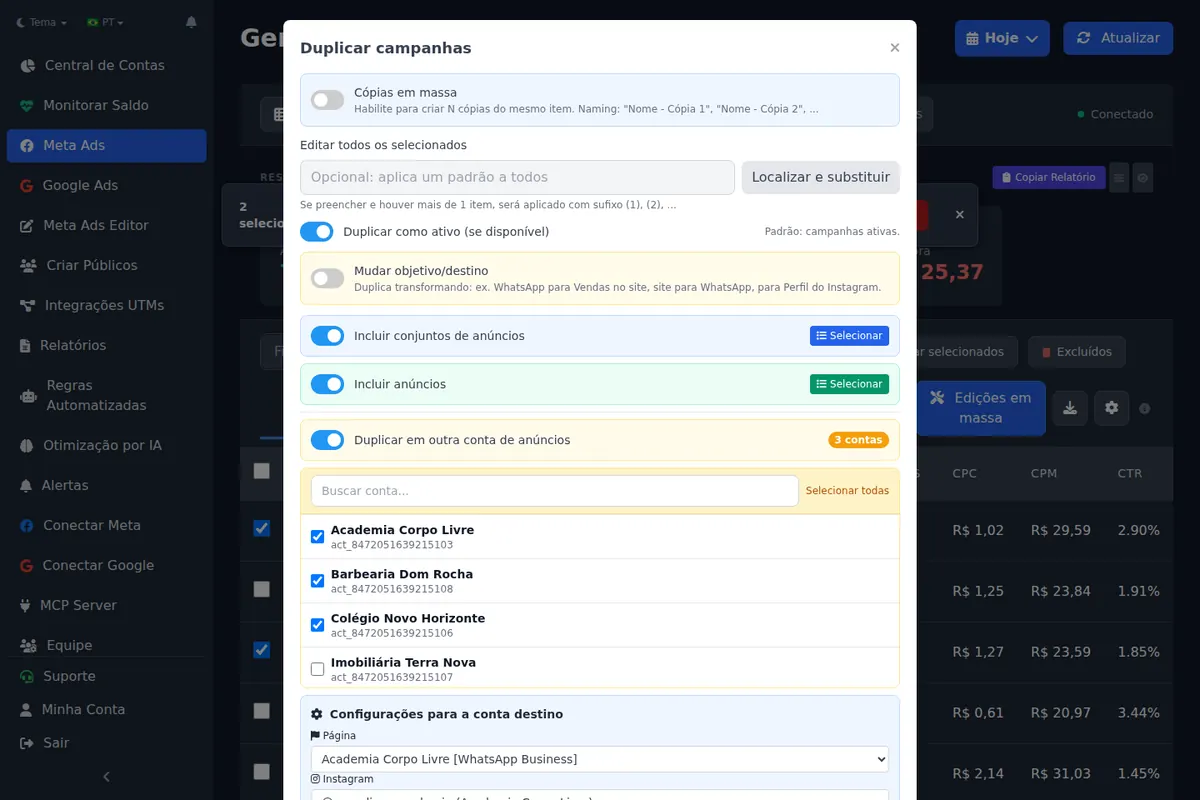
- Open Duplicate. In Meta Ads, click Bulk Edit above the table, check the campaigns and click Duplicate in the action bar.
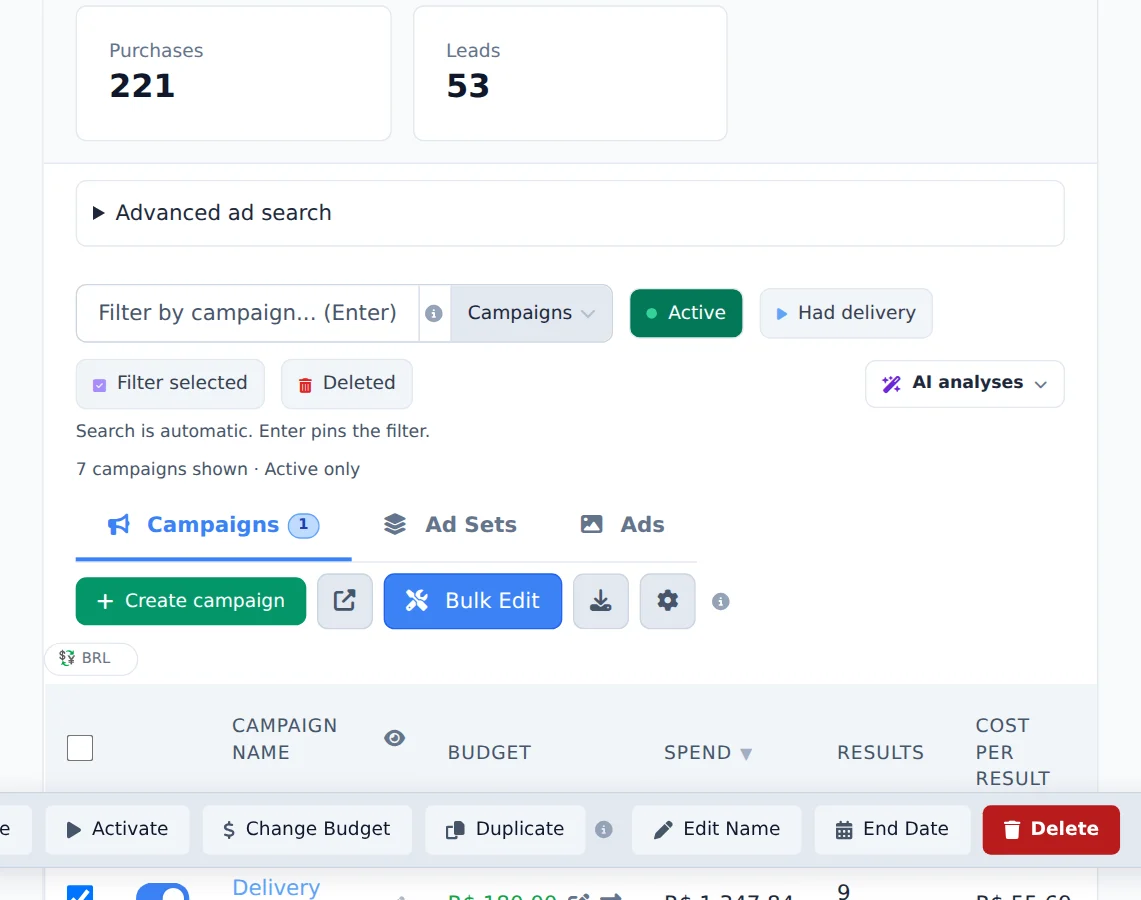
- Turn on Duplicate to another ad account. Search for and check one or more destination accounts. Select all copies to the whole list at once.
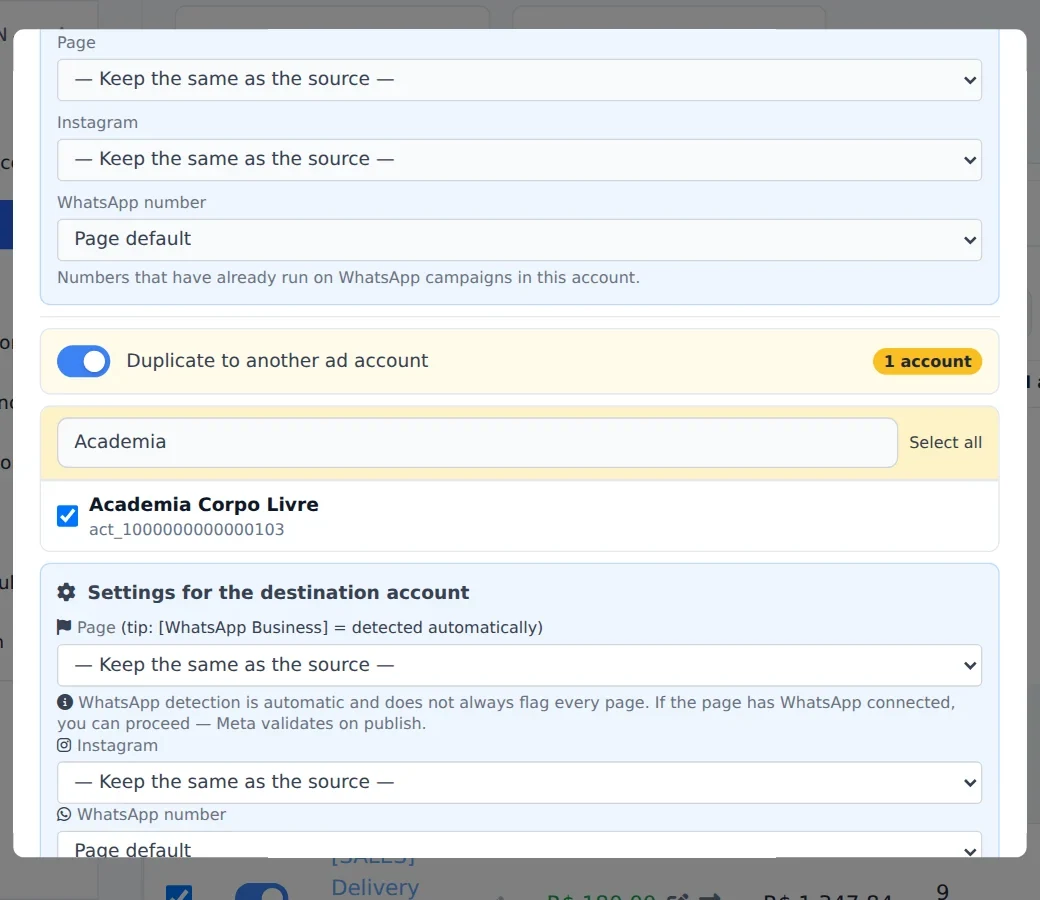
- Check the destination settings. Under Settings for the destination account, review the Page, the Instagram account and, for website conversion campaigns, the Pixel. Keep the same as the source keeps the originals when the destination account has access to them.
- Rename if you want. The copy's name ends in Copy.
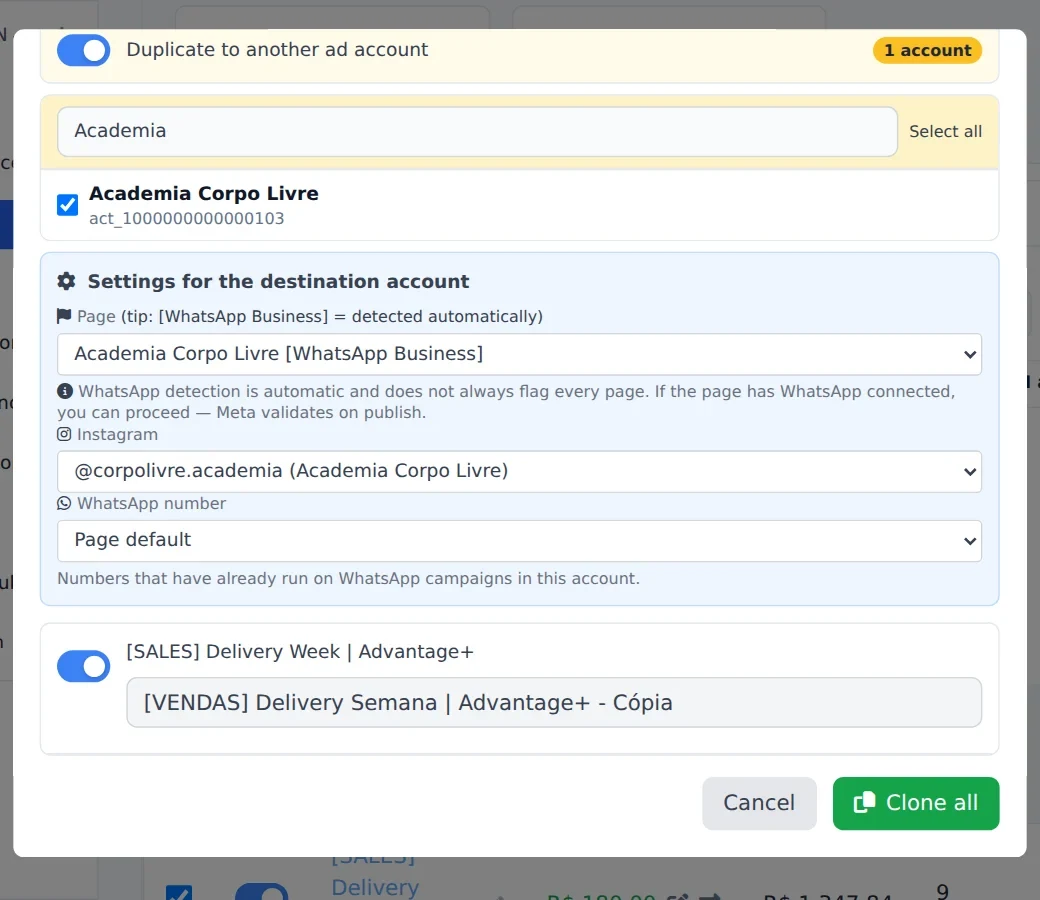
- Confirm and follow the card. The card in the corner of the screen ends in Completed, once for each destination account.
- Check the destination account. Open it in Meta Ads: the campaign is there with its ad sets and ads, using the Page and Instagram you chose.
Native export and import or Ads Editor: what is the difference?
| Step | Native export and import | Ads Editor |
|---|---|---|
| Where it starts | Export menu in the source account, desktop only | Duplicate in Bulk Edit, in the browser |
| Destination accounts per action | One: switch to it and import the file | Several, with Select all for the whole list |
| Page, Instagram and pixel | Replace the IDs in the spreadsheet, row by row | Chosen once under Settings for the destination account |
| Custom audiences | Replace each ID by hand | Matched by name in the destination; misses are flagged |
| WhatsApp number | Check every messaging ad set | Detected from active ad sets or the Page's number |
| Images and videos | Upload again in the destination | Uploaded to the destination as part of the copy |
| Ad UTMs and message templates | Only if the columns survive the edit | Come along with the copy |
| Scheduled start | Not part of the import | Optional date and time, at least 5 minutes ahead |
| Size limit | About 2 MB per file | No spreadsheet involved |
Neither route carries delivery history or learning: both create a new campaign. The difference is how many manual swaps sit between you and a copy that spends on the right Page and pixel.
What happens to custom audiences?
A custom audience belongs to the ad account. During the copy, Ads Editor looks in the destination account for an audience with the same name (ignoring accents, letter case and the Instagram handle suffix) and swaps it in. Anything without a match is flagged as not found, so you know exactly which ad sets to fix.
Workflow tip
Before copying, create the same audiences with the same names in the destination account. Creating custom audiences in bulk does it in one action, and the copy then finds everything on its own.
What if it is a WhatsApp campaign?
The copy detects the destination number from active ad sets, or from the number connected to the Page. Still open one messaging ad set in the copy before activating: a message that reaches the wrong client's WhatsApp is the most expensive kind of silent mistake.
Can you move a campaign to another ad account instead of copying it?
No. A campaign belongs to the ad account where it was created, and there is no move option in Ads Manager or in Ads Editor. What you can do is create the copy in the destination and then pause or delete the original. The copy is a new campaign: new IDs, no delivery history and a fresh learning phase, so size its budget with the learning phase formula.
What if Meta disabled the source ad account?
Ads Editor's Help Center describes the cross-account copy as the way to save the campaigns of an ad account Meta disabled: rejected ads come along too (only deleted and archived ads are left out) and go through Meta's review again in the destination. Fix whatever got the ads rejected before you copy, because the review starts over.
Can you copy a campaign to an ad account in another Business Manager?
Yes, as long as your access reaches both accounts. The native export and import needs access to the source and the destination. In Ads Editor, the requirement is that the destination account is available to the Meta profile you connected, so the question is whether your profile can open both accounts, not which Business Manager owns them. The Page, pixel and audiences still have to exist in, or be shared with, the destination.
How do you copy a single ad to another ad account?
In Ads Editor, click Bulk Edit in Meta Ads, open the Ads tab, check the ad, click Duplicate and turn on Duplicate into another ad set. Pick the Destination account, then the destination campaigns and ad sets. The ad is duplicated into each ad set you check. What changes when the destination is another account:
- The image or video is uploaded again to the destination account.
- The source pixel does not come along, because it is not valid in the other account: conversion tracking follows the destination ad set.
- An ad built from an existing post uses the same post, so its likes and comments stay with it. The destination account needs access to that post's Page.
- A whole ad set cannot go to another account this way. To take ad sets along, copy the campaign.
Can you duplicate and change the objective at the same time?
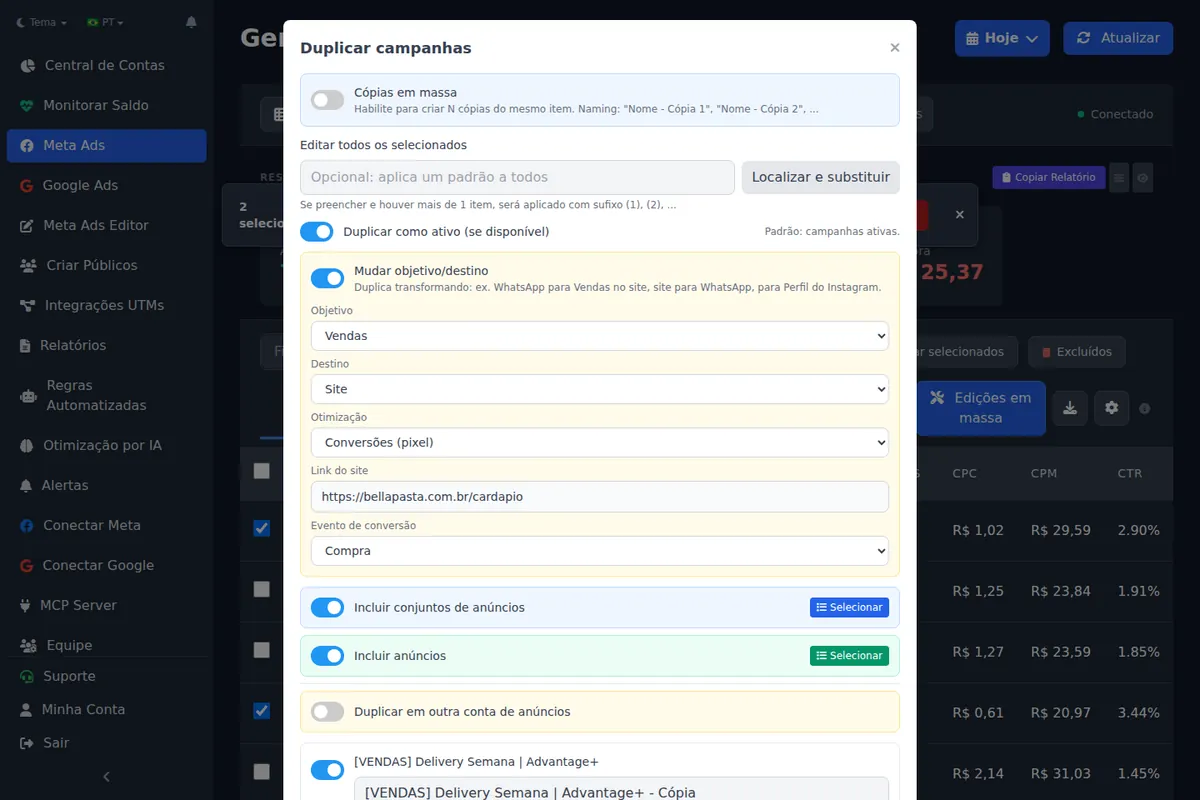
Yes, and it solves another common request: turning a website sales campaign into a WhatsApp campaign, or a WhatsApp campaign into website sales, without rebuilding the ad sets. The duplicate flow has a Change objective and destination option that adjusts the optimization goal to one compatible with the new objective.
Is copying the right way to move from ABO to CBO?
It is one of the best uses for it. Changing the budget structure of a running campaign is a significant edit and restarts learning. Many media buyers prefer to duplicate the winning ad sets into a new campaign already built the right way and leave the original untouched. The full reasoning is in CBO vs ABO. One more reason to keep campaigns lean: Meta documents that a campaign with more than 70 ad sets on Advantage campaign budget cannot turn that budget off or change its bid strategy.
Can you copy a Google Ads campaign to another account?
Google Ads has no copy to another account button either; the native route is Google Ads Editor, Google's free desktop app, with both accounts downloaded. In Ads Editor the flow mirrors the Meta one: turn on Bulk Edit, check the campaigns, click Duplicate and turn on Duplicate to another ad account, then check one or more destination accounts.
- What you copy: campaign, ad groups and ads (full copy), campaign and ad groups only, or the campaign alone. The copy starts paused by default.
- What you can overwrite: final URL, headlines and descriptions of the copied ads, so the new client's site goes in during the copy.
- What comes along: locations, languages, ad schedule and device adjustments. A Performance Max copy takes its asset group with it.
- What does not work: Video campaigns, because Google's API treats them as read-only for any external tool. Search, Display, Performance Max and Demand Gen are supported across accounts.
The weekly routine around many Google accounts is in how to manage Google Ads for multiple clients.
What changed in cross-account copies in October 2026?
- The destination account's pixel on the ads (October 15, 2026). Tracking on a copied ad now points to the destination account's pixel. Before, the campaign and ad set were created, but Meta rejected ads that still carried the source pixel.
- URL parameters and message templates come along (October 15, 2026). The copy keeps the ad UTMs and the WhatsApp message template saved on the campaign, ad set and ad.
- Scheduled start (October 14, 2026). In the Duplicate dialog, the Schedule start (optional) field creates the copy as active, delivering only from the chosen date and time, at least 5 minutes ahead. Left empty, the copy starts like the original. Start, end and dayparting rules are in the guide on how to schedule Facebook ads.
- Several campaigns or ad sets at once in the Meta Ads Editor (October 16, 2026). On the upload screen, select several sources and duplicate them together; each copy keeps its original name plus Copy.
Measured: June 25 to September 23, 2026
1,547 campaigns and 696 ad sets were copied in Ads Editor. Another 638 actions moved ads or ad sets to a different campaign or ad set.
For the workflow around this, read how to manage multiple Facebook ad accounts.
Step by step in Ads Editor
Help Center articles that walk through this task screen by screen:
Frequently asked questions
Does Meta Ads let you copy a campaign to another account?
Not with a button. The native path is exporting the campaign to a spreadsheet, clearing the ID columns, swapping Page, Instagram, pixel and audiences, and importing it in the other account with Import ads in bulk.
Can I move a campaign to another ad account instead of copying it?
No. A campaign stays in the account where it was created. You create a copy in the destination and pause or delete the original; the copy starts with no delivery history.
Does the copied campaign keep its learning, likes and comments?
Learning and delivery history never carry over. Likes and comments stay on the post, so they only come along when the ad is built from the same existing post and the destination account can use that Page.
Can I copy just one ad to another ad account?
Yes. In Ads Editor, duplicate the ad with Duplicate into another ad set and pick the destination account, campaign and ad set. The media is uploaded again and the source pixel is replaced by the destination ad set's tracking.
Can I copy into several accounts or another Business Manager at once?
Yes. Duplicate to another ad account accepts several destination accounts in one action. The requirement is access: any ad account available to the Meta profile you connected can be a destination.
Glossary
- Pixel (dataset)
- The Meta tracking object that records website events; each ad account uses its own.
- Significant edit
- A change Meta treats as large enough to send an ad set back into the learning phase.
- Advantage+ creative text generation
- Meta's option that generates text variations for an ad; it can break spreadsheet exports.
- Destination account
- The ad account that receives the copy. Page, pixel, audiences and WhatsApp number must be valid in it.
References
- Migrate Meta ads between ad accounts (Victor Serban). Supports: Native steps: export ads to a spreadsheet, clear Campaign ID, Ad set ID and Ad ID, switch to the target account before importing to avoid pixel errors, and remove Advantage+ creative text generation when multiple headlines break the export.
- Advantage campaign budget (Meta for Developers). Supports: A campaign with more than 70 ad sets using Advantage campaign budget cannot edit its bid strategy or turn off Advantage campaign budget.
- Ads Editor Help Center: duplicate Google Ads campaigns. Supports: Checked November 2, 2026: Duplicate into another ad account with several destinations; full copy, campaign and ad groups, or campaign only; final URL, headlines and descriptions can be overwritten across accounts; Search, Display, Performance Max and Demand Gen supported, Video not, due to the Google Ads API.
The claim supported by each source is shown above.
About the author
Matheus Mello, founder of Ads Editor and owner of YEP Agência. Runs client ad accounts at YEP Agência and built Ads Editor so his own agency could stop publishing ads one at a time. Usage numbers quoted on the blog come from the product activity log. Instagram: @theusm