Advantage+ creative enhancements in Meta Ads: what they do and how to turn them off
By Matheus Mello, founder of Ads Editor and owner of YEP Agência · Published · 8 min read
Advantage+ creative enhancements can change how your ad looks: you approve the design and copy, then see a different crop, text over the image or music you never chose. Here is what to check and how to turn these changes off without opening every ad.
Quick answer
To turn off Advantage+ creative enhancements, open the ad in Meta Ads Manager and disable the creative improvements. With Ads Editor or its MCP, you can apply the change to selected ads in bulk. New ads created through Ads Editor’s bulk publishing workflow have enhancements off by default, with some exceptions.
Summary
- Advantage+ enhancements can change your ad’s copy, crop, background and other elements.
- Turning them off helps preserve client-approved creative and gives you more control over creative tests.
- Ads Editor lets you disable enhancements in bulk. Through its MCP, you can request the same action in a conversation with AI.
- New ads created through Ads Editor’s bulk publishing workflow have enhancements off by default. Check the exceptions for music and ads with multiple messaging destinations.
What are Advantage+ creative enhancements?
These features let Meta automatically adapt your ad to try to improve results. Meta may change the crop, adjust colors, rearrange text, add elements to the image or create variations with AI.
For a media buyer, the practical point is simple: people may see a different version of the creative you approved. That can help some campaigns, but it can also get in the way when the brand, offer or test needs tighter control.
Creative enhancements are only one part of Meta’s automation
This guide covers improvements that change the creative. Turning them off does not automatically disable Meta’s audience, budget or placement suggestions. It is also different from turning off an Advantage+ campaign.
What can Meta change in your ad?
Names and available options vary by account, format and Ads Manager updates. Instead of memorizing every name, check what each option does to your creative:
| Enhancement | What may change | What to check |
|---|---|---|
| Crop and size | The image or video is cropped or adapted to fit other spaces. | Are the logo, price, captions and faces still fully visible? |
| Brightness, contrast and color | The appearance of the image or video is adjusted. | Does the product color still match what the customer will receive? |
| Ad copy and call to action | Headlines and descriptions may appear in a different order or combination. | Are the offer, price, deadline and conditions still clear? |
| Text and stickers over the design | Extra elements may appear on top of the image. | Do they cover information or clash with the brand’s visual identity? |
| AI expansion, backgrounds and animation | Meta may fill empty space, replace the background or animate an image. | Does the creative still accurately represent the product and approved material? |
| Comments and extra information | The ad may highlight comments or additional details. | Does the highlight support the offer and make sense for the sale? |
| Translations | Text or speech may appear in another language. | Does the translation preserve the message and suit the audience? |
| Automatic music | A soundtrack may be added to the ad. | Does the music suit the creative without getting in the way of speech? |
When should you turn enhancements off?
When an ad needs to run exactly as approved, turning off automatic changes is the simplest approach. It helps prevent another version from going live without your review.
- Client-approved creative: preserve the wording, colors and elements the client signed off on.
- Offers with a price, deadline or conditions: avoid a layout that highlights the benefit while hiding an important detail.
- Product ads: check that the color, appearance and setting remain faithful to the product being sold.
- Testimonials: preserve the original recording and message, especially speech, captions and the speaker’s identity.
- Creative tests: if you want to compare two hooks or designs, reduce automatic changes that could interfere with the comparison.
An example in a creative test
You want to compare an image with a price against one without a price. If an enhancement adds text to the second image, you are no longer comparing only the two versions you prepared. Disabling those changes helps keep the comparison under control.
If you keep an enhancement enabled, test it with a clear goal and evaluate cost per result, lead quality or sales, depending on the campaign. Turning everything off does not guarantee more conversions; the immediate benefit is control over what goes live. See how to test Meta Ads creatives.
How to turn enhancements off in Meta Ads Manager
- Open Ads Manager and select the ad you want to change.
- In the creative editor, find the Advantage+ creative enhancements section. Its name may vary in your account.
- Open the available options and turn off the changes you do not want. Check for automatic music as well.
- Review Feed, Stories and Reels previews to check the copy, crop and design elements.
- Save and publish the changes. Repeat for other ads that need the same adjustment.
For a few ads, manual review may be enough. Across several campaigns and dozens of creatives, the work repeats: open, review, disable and save. That is where bulk editing helps.
How to disable creative enhancements in bulk with Ads Editor
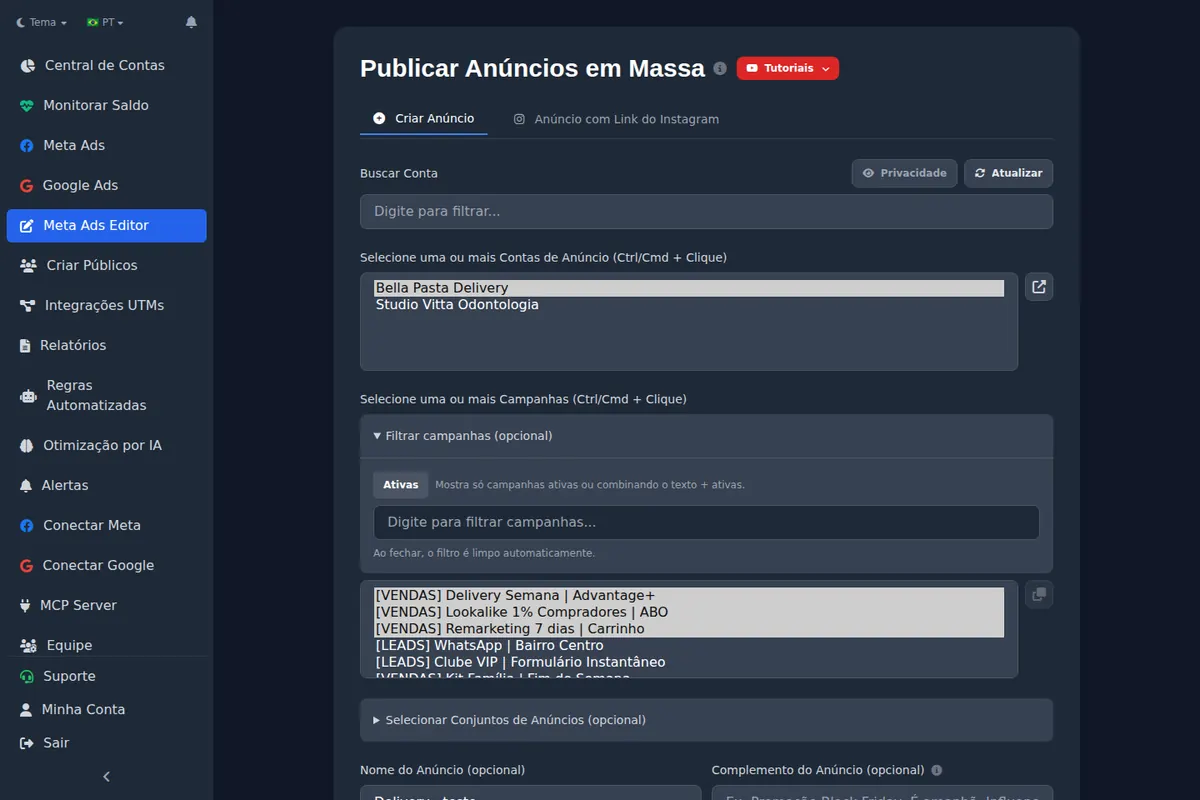
In Ads Editor, select multiple ads and turn off creative enhancements in one operation. You do not have to open every ad in Meta Ads Manager to repeat the same setting.
- Open the Meta Ads manager inside Ads Editor and choose the account.
- Select the ads you want to update.
- Open bulk editing and choose Disable Advantage+.
- Review your selection, apply the change and check the operation’s results.
You can also update a single ad. The change applies to the ads you selected; it does not permanently lock the whole account. Ads published outside this workflow still need to be checked.
How to request the change through Ads Editor’s MCP
Ads Editor’s MCP connects the product to your AI assistant. Once connected, you can request changes in everyday language without learning technical commands.
Example request for your AI assistant
“Disable automatic creative enhancements on the active ads in client X’s account. Show me the ads you found before applying the change, then show me the results when it finishes.”
You can limit the request to a campaign or a list of ads. In larger accounts, the task may continue in the background or require more batches. Wait for completion and review which ads were updated, which are pending and which returned an error.
Are enhancements already off on new ads published through Ads Editor?
Yes. Ads created through Ads Editor’s bulk publishing workflow are submitted with creative enhancements off by default. That removes the need to remember to uncheck the same options for every new ad.
This is useful when you publish many variations, work with client-approved assets or want more control over creative tests. Prepare the creatives and publish with that default. See how to upload Meta ads in bulk.
What to check in other formats
Ads with multiple messaging destinations, such as Messenger and WhatsApp together, may follow Meta’s defaults and need review. Check automatic music separately in Ads Manager. Cloned ads and existing posts also need their own review: the default described here applies to new ads created through bulk publishing.
A simple routine for keeping control of your creatives
- Agree on the default with the client: should the ad run exactly as approved, or are automatic variations allowed?
- Review active ads: disable enhancements in bulk where the original creative needs to stay intact.
- Standardize future publishing: upload new ads through Ads Editor’s bulk publishing workflow, with enhancements off by default.
- Check exceptions: review music and ads with multiple messaging destinations.
- Review changes outside the workflow: regularly check ads created or edited directly in Meta.
Frequently asked questions
Are Advantage+ creative enhancements the same as Advantage+ campaigns?
No. Creative enhancements change how the copy, image or video is presented. Advantage+ campaigns involve other automation choices. Turning off creative improvements does not automatically turn off audience, budget or placement automation.
Can I disable enhancements on several ads at once?
Yes. In Ads Editor, select the ads and choose Disable Advantage+ in bulk editing. Through MCP, you can also request the change for ads in an account or campaign. Check the results to confirm which selected ads were processed.
Do new Ads Editor ads have enhancements off by default?
Yes, for bulk publishing. Ads with multiple messaging destinations need review, and automatic music should be checked separately. Later edits in Meta Ads Manager can also change the settings.
Does turning enhancements off improve campaign performance?
There is no guarantee of better performance. The benefit is control over how the creative appears. Compare results in a test and evaluate the metric that matters for the campaign.
How do I turn off automatic music?
Edit the ad in Meta Ads Manager, find the music option and disable automatic music. Check the preview to confirm the soundtrack is gone. Review this separately from other creative enhancements.
Glossary
- Creative
- The image or video and copy that make up an ad.
- Placement
- The space where an ad appears, such as Feed, Stories or Reels.
- Advantage+ creative enhancements
- Automatic improvements that can change how an ad’s copy, image or video appears.
- Ads Editor MCP
- A connection that lets you request Ads Editor actions from an AI assistant in everyday language.
References
- Meta: Reels ads and creative adaptation. Supports: Ad format adaptation, image expansion and music options.
Links opened and checked on Oct 1, 2026.
About the author
Matheus Mello, founder of Ads Editor and owner of YEP Agência. Runs client ad accounts at YEP Agência and built Ads Editor so his own agency could stop publishing ads one at a time. Usage numbers quoted on the blog come from the product activity log. Instagram: @theusm