Google Ads recommendations: which to apply, which to dismiss, and what optimization score measures
By Matheus Mello, founder of Ads Editor and owner of YEP Agência · Published · 7 min read
Google Ads recommendations are the suggestions Google generates for each account: raise the budget, switch the bid strategy, add keywords, create assets. Some save work, others spend more than you planned, and the optimization score moves either way, because applying and dismissing both count.
Quick answer
Google Ads recommendations are automatic suggestions from Google for your account. Apply the ones that fix coverage without changing strategy, such as missing assets, and dismiss the ones that only raise spend or switch bidding without reliable data. Dismissing also changes your optimization score, which estimates account setup, not results.
Summary
- Optimization score runs from 0 to 100% and estimates how well the account is set up to perform; it is not a results metric.
- Applying or dismissing recommendations changes the score. Dismissing what does not fit is as legitimate as applying.
- Optimization score is not used by Quality Score, according to Google Ads Help.
- Auto-apply can be turned on and off at any time; on client accounts, keep budget, bidding and keywords out of it.
- In Ads Editor, each recommendation shows what changes and how many points it adds, asks for confirmation, and can be dismissed in bulk.
What is optimization score, and what doesn't it measure?
Optimization score is the number that comes with the recommendations. What Google Ads Help says, checked October 17, 2026:
- It is an estimate of how well your Google Ads account is set up to perform.
- It runs from 0 to 100%, with 100% meaning the account can perform at its full potential, in Google's view.
- Applying or dismissing recommendations changes the account's overall score.
- It is shown only for active Search, Display, Video Action, App, Performance Max, Demand Gen and Shopping campaigns.
- It is not used by Quality Score.
In plain terms: the score measures how closely the account follows Google's suggestions, not how much it sells. An account at 70% with CPA on target is in better shape than one at 100% with the budget blown.
Which recommendations should you apply, and which should you dismiss?
The right question for each one is: does it fix something missing, or does it change the strategy you agreed with the client? The first usually pays; the second needs data.
| Recommendation type | Apply when | Dismiss when |
|---|---|---|
| Assets and extensions (sitelinks, callouts, images) | Almost always: it is ad coverage | The suggested text promises something the client does not offer |
| Raise budget | Limited by budget, CPA on target, client agrees | Fixed contract budget, or CPA above target |
| Switch bid strategy | Conversions are set up correctly and volume is steady | Duplicate or misconfigured conversions, or low volume |
| New keywords or broad match | After reading search terms, with negatives up to date | They bring searches outside the intent |
| Remove redundant or zero-impression keywords | After checking it is not brand or seasonal | Keywords that only run in a specific season |
| Search partners or Display expansion | Only as a separately measured test | Search campaigns on a tight budget |
| Create Performance Max | As a planned campaign, with feed and assets ready | As a reaction to a prompt |
Budget and bidding move money
Budget and bidding recommendations change how much the account spends. On a client account, apply one at a time, note the date and read the result before the next. Two changes on the same day make it impossible to know which one moved the CPA.
Should you turn on auto-apply recommendations?
Google Ads Help, checked October 17, 2026, explains that auto-apply can be turned on or off at any time in the auto-apply settings, that you pick bundles or individual types within categories (ads and assets, bidding, keywords and targeting, measurement), and that only a select number of recommendations can be applied automatically. The History tab shows what was applied, and Change history lets you inspect each change.
On client accounts, the prudent rule is to keep anything that touches budget, bidding or keywords out of auto-apply and to check the History tab weekly. Whatever got applied without you knowing becomes a client question, and "Google applied it" helps nobody.
How do you apply and dismiss recommendations in Google Ads?
- Open Recommendations in the account menu and filter by campaign if you need to.
- Read what each recommendation changes and the estimated impact Google shows.
- Click Apply or Dismiss. Dismissing removes it from the list.
- Check the History tab and, if auto-apply is on, the day's queue.
How do you apply and dismiss recommendations in Ads Editor?
Since October 10, 2026, Ads Editor's Google manager shows Google's official recommendations and lets you apply and dismiss them without opening Google Ads.
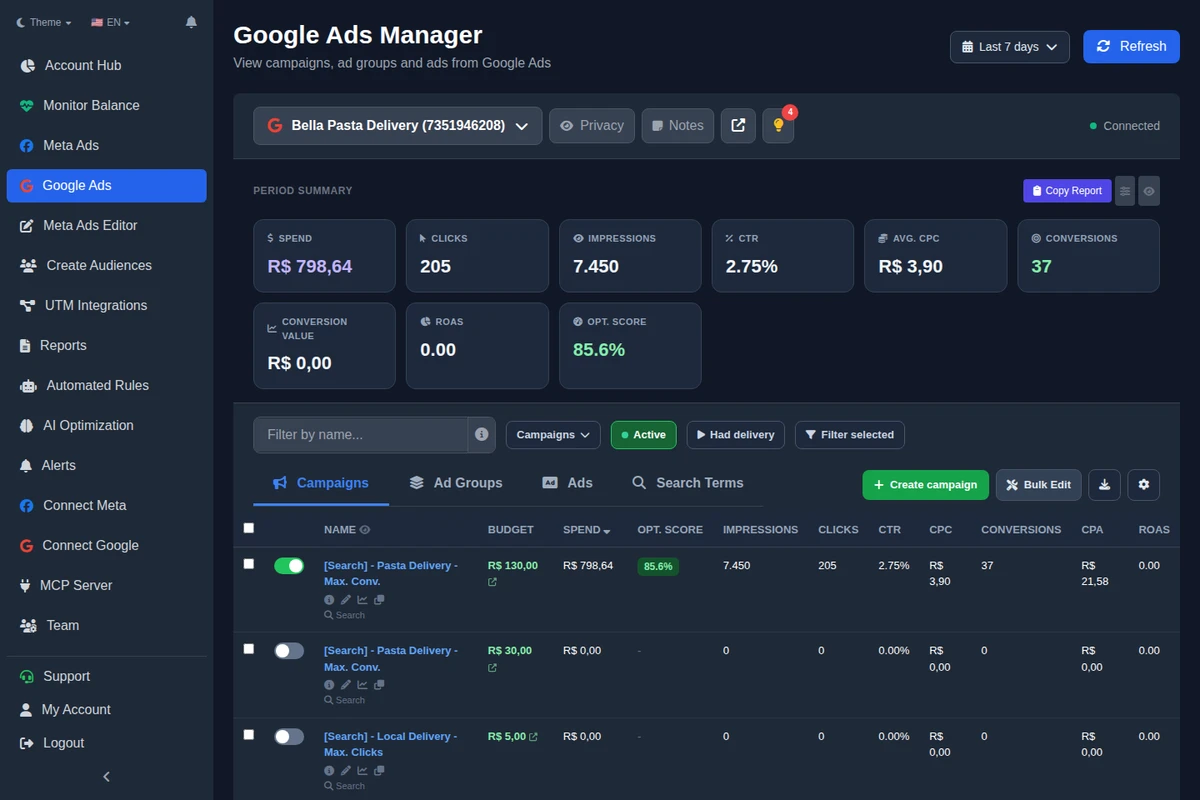
- The light bulb button at the top of the Google Ads manager, with a red count of pending items, opens the Recommendations window, with the account's optimization score at the top.
- Each recommendation is spelled out: what it proposes, current and suggested values (budget, keyword, target CPA or ROAS, copy), Google's estimate and how many points the score would rise. The list is sorted by the biggest uplift; several of the same type show the group's uplift.
- Apply and Dismiss ask for confirmation and show what changes. Budget and bidding are applied one at a time, with a warning.
- Dismiss all, per group or at the bottom, clears whatever does not fit the strategy in one go, with the window telling you how many.
- What Google does not allow applying from outside, such as creating Performance Max or extensions with no suggestion, opens in Ads Editor's own flow, for example Create campaign.
The score can also show as a card in the period summary and as a column in the campaign table, and every change goes into the team history. From an AI chat, the Ads Editor MCP lists, applies and dismisses Google recommendations, always showing the plan before acting.
How do you review recommendations across many accounts every week?
- Block a fixed weekly slot and go through accounts in order of spend.
- In each account, dismiss first whatever contradicts the agreed strategy (fixed budget, bidding you do not want). It is quick and clears the list.
- Apply coverage: assets, extensions, redundant keywords.
- Leave budget and bidding for one decision at a time, with the date noted.
- Finish with search terms and negative keyword lists, which keyword recommendations make more urgent.
The full routine for running Google Ads across clients, with bidding, negatives and Performance Max, is in how to manage Google Ads for multiple clients.
Does a low optimization score hurt your campaigns?
Not directly. Google Ads Help says the score is not used by Quality Score, and it is not part of the auction. The risk runs the other way: chasing 100% by applying everything Google suggests, including what raises spend without raising results. You answer for the CPA, not the score.
Frequently asked questions
Does dismissing a recommendation change the optimization score?
Yes. Google Ads Help says applying or dismissing recommendations changes the account's overall optimization score.
Does optimization score affect Quality Score?
No. According to Google Ads Help, optimization score is not used by Quality Score.
Should I apply every recommendation to reach 100%?
No. The score measures how closely the account follows Google's suggestions, not results. Apply what fixes coverage and dismiss what contradicts your strategy.
How do I turn off auto-apply recommendations?
In the auto-apply settings, in the Recommendations section of Google Ads. Google Ads Help says it can be turned on or off at any time.
Does Ads Editor apply recommendations on its own?
No. Every apply or dismiss asks for confirmation and shows what changes, and budget and bidding are applied one at a time.
Glossary
- Optimization score
- Google's estimate, from 0 to 100%, of how well an account is set up to perform.
- Recommendation
- An automatic suggestion from Google for the account, such as a budget, bidding, keyword or asset change.
- Auto-apply
- A setting that lets Google apply selected recommendation types on its own.
- Score uplift
- How many points the optimization score would rise if a recommendation were applied, according to Google.
References
- About optimization score, Google Ads Help (checked October 17, 2026). Supports: Optimization score is an estimate of how well the account is set to perform; scores run from 0 to 100%; applying or dismissing recommendations changes the score; it is shown for active Search, Display, Video Action, App, Performance Max, Demand Gen and Shopping campaigns; it is not used by Quality Score.
- About applying recommendations automatically, Google Ads Help (checked October 17, 2026). Supports: Auto-apply can be turned on or off at any time; recommendations are picked by bundles or individually across ads and assets, bidding, keywords and targeting, and measurement; only a select number can be auto-applied; the History tab and Change history show what was applied.
- About recommendations, Google Ads Help (checked October 17, 2026). Supports: The Recommendations page automatically generates recommendations that could improve performance and introduce new, relevant features.
The claim supported by each source is shown above.
About the author
Matheus Mello, founder of Ads Editor and owner of YEP Agência. Runs client ad accounts at YEP Agência and built Ads Editor so his own agency could stop publishing ads one at a time. Usage numbers quoted on the blog come from the product activity log. Instagram: @theusm