Google Ads automated rules: what to automate, examples and limits
By Matheus Mello, founder of Ads Editor and owner of YEP Agência · Published · 9 min read
Google Ads automated rules run an action when a condition is met: pause the keyword that spent without converting, lower the target CPA of an expensive ad group, warn you when a campaign stopped spending. They do not replace Google's bidding strategy, but they take the repeated checking out of your routine. Here is what is worth automating, five rules to copy and where a rule stops helping.
Create my first ruleQuick answer
Google Ads automated rules apply an action, such as pausing, enabling, changing a budget or adjusting a bid, when a metric crosses the limit you set. They cut waste and flag deviations. Start with rules that only notify, review the history for a week, and only then let the rule act on its own.
Summary
- A rule is a condition plus an action: if the metric crosses the limit in the period, the action runs.
- In Google Ads, the target can be a campaign, an ad group, an ad or a keyword.
- The useful actions are pause, enable, change budget, adjust target CPA and adjust the keyword bid.
- A rule does not fix bad conversion tracking and does not replace automated bidding.
- In Ads Editor, Google rules sit next to Meta rules, with a history of every run.
- Whoever handles several accounts gains the most: the same rule applies to every account you choose.
In this article · 7 sections
What are automated rules in Google Ads?
They are instructions of the "if this happens, do that" kind. You choose what the rule acts on (campaigns, ad groups, ads or keywords), the condition (a metric, an operator and a value), the period that goes into the calculation and the action. From then on the rule runs at the frequency you set, with nobody opening the account.
Google Ads has its own automated rules, which change status, budget and bids and can trigger emails when a condition occurs. They work well for a single account. The limit shows up for anyone handling several clients: each rule lives inside one account, and repeating the same logic across twenty accounts is manual work.
What is worth automating and what is not?
| Situation | Worth a rule? | Why |
|---|---|---|
| A keyword that spends and does not convert | Yes | The criterion is objective and the cost of waiting is money spent |
| An ad group with cost per conversion above target | Yes, with a period of 7 days or more | It avoids reacting to one bad day |
| A campaign that stopped spending | Yes, as a warning | It is almost always a payment, disapproval or budget problem |
| Turning a campaign on and off on a set date | Yes | A promotion with a day and time to start and end |
| Choosing the bid for each auction | No | That is the job of the automated bidding strategy |
| Deciding which search term to add as a negative | With care | Brand terms and terms about the campaign's own subject should not be removed by a blind rule |
| An account with badly configured conversions | No | The rule will act correctly on a wrong number |
Rules and automated bidding in the same campaign
When the campaign uses Maximize conversions or Target CPA, changing the budget and the CPA target too often restarts the strategy's learning. Use a long calculation period and a low frequency on rules that change those campaigns.
Five rules to copy
| Goal | Apply to | Condition | Period | Action |
|---|---|---|---|---|
| Cut the keyword that only spends | Active keywords | Spend greater than the target CPA and Conversions equal to 0 | Last 14 days | Pause |
| Hold back an expensive keyword | Active keywords | Cost per conversion greater than 1.5 times the target | Last 7 days | Decrease the bid (CPC) by 10% |
| Tighten an ad group above target | Ad groups | Cost per conversion greater than the target | Last 14 days | Decrease target CPA by 10% |
| Give budget to what converts cheaply | Active campaigns | Cost per conversion lower than the target and Conversions greater than 10 | Last 7 days | Increase budget by 15% |
| Know that the campaign stopped | Active campaigns | Impressions equal to 0 | Yesterday | Send notification |
The numbers are a starting point, not a recipe. Replace "target" with the cost per conversion the account can afford and adjust the percentages to the size of the budget. In an account with few conversions per week, stretch the period: seven days with three conversions cannot support any decision.
How do you create the rule in Ads Editor?
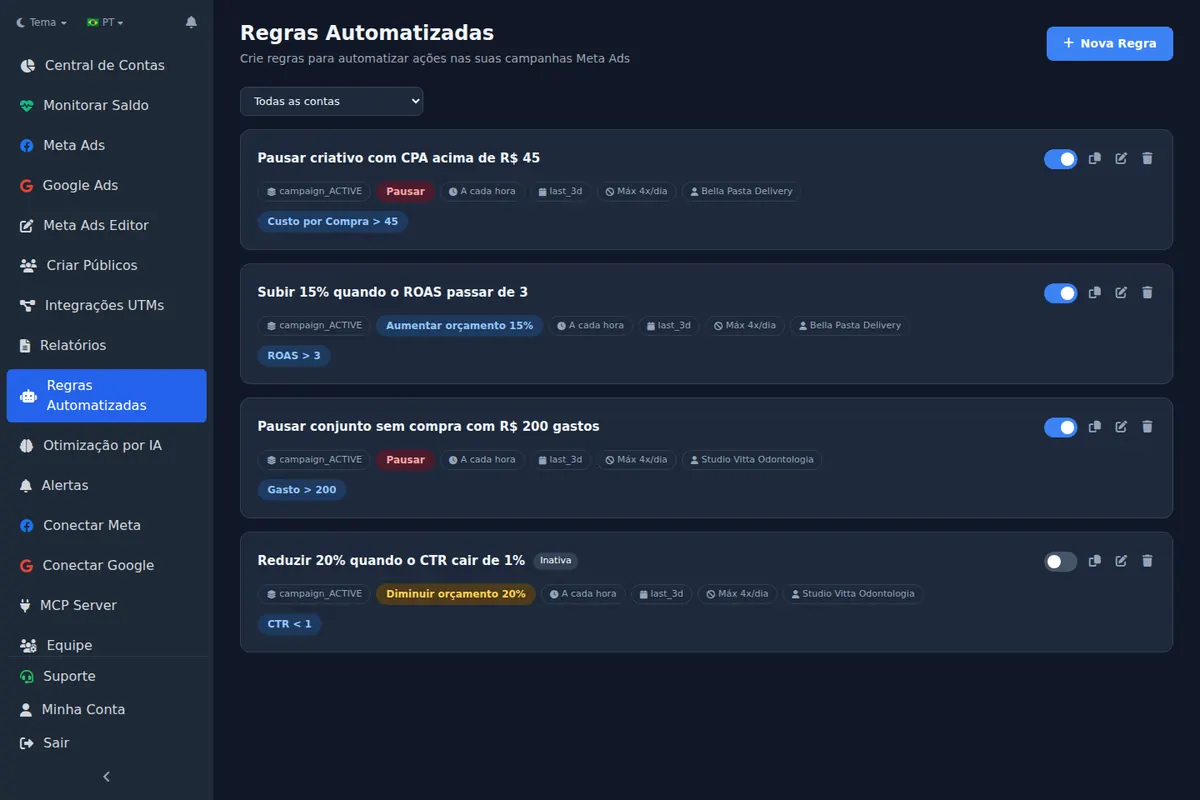
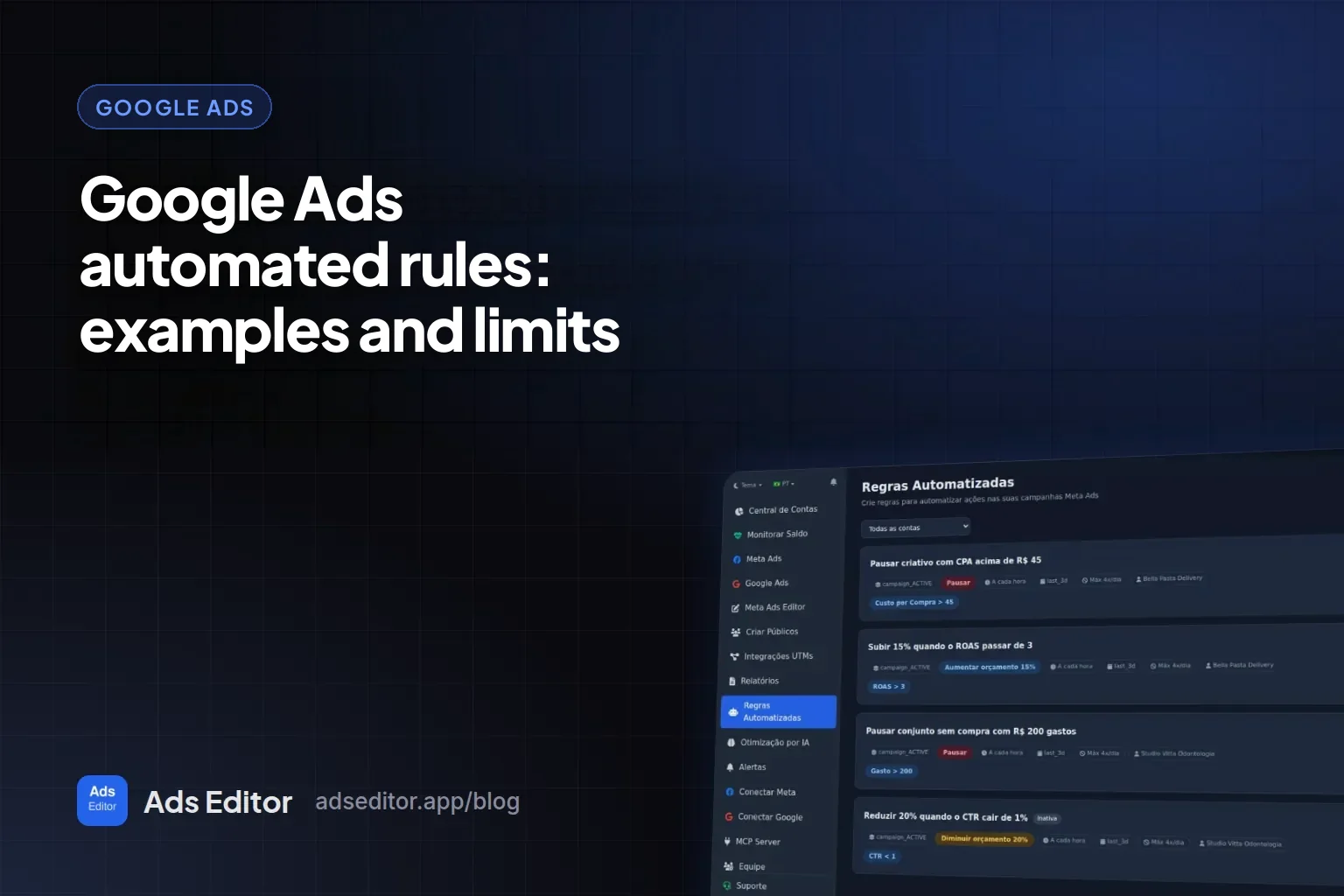
In Ads Editor, Automated Rules has a Meta tab and a Google tab. A Google rule reads the accounts in your Google Ads account selection and can apply to one, several or all of them at once, which is what solves the problem of repeating the same logic client by client. The step-by-step with screenshots is in the help center guide on creating an automated rule.
- Open Automated Rules, click the Google tab and then New rule.
- Give it a name that explains the rule and choose the accounts.
- Under Apply to, choose the level: campaigns, ad groups, ads or keywords. To limit the rule to some names, use the name filter.
- Add the condition: metric, operator and value. With more than one condition, the rule only acts when all of them are met.
- Choose the calculation period, the action and the frequency.
- Save. The rule starts enabled, and the execution history shows every time it ran and what it did.
The metrics available for Google are spend, conversions, cost per conversion, conversion value, ROAS, all conversions, conversion rate, CTR, average CPC, CPM, impressions, clicks and impression share. The actions are pause, enable, increase, decrease or set the budget (on a campaign), increase, decrease or set the target CPA (on a campaign or ad group), increase, decrease or set the keyword CPC bid, or just send a notification.
Create the rule straight from the manager
When the rule is for specific items, there is no need to build a name filter. In the Google Ads manager inside Ads Editor, check the campaigns, ad groups or ads and click Create rule in the selection bar. The rule is born applying only to the checked items, and the default is a date: "pause these ads on the 30th", with no metric. You can also use a metric, as on the rules page. Afterwards it shows up in Automated Rules, where you can edit it or turn it off.
Schedule: always, once or at set times
- Continuously: the rule runs all the time, at the chosen frequency. This is the mode for cost rules.
- Specific Date: it runs once, on the date and time you set. Good for turning a promotion on or off.
- Custom: it runs only on the days and times you mark.
What does the rule not do, on purpose?
- It does not fight automatic optimization over the budget. A budget rule on a campaign whose budget is under Ads Editor's AI Optimization, in automatic mode, is skipped, and the reason stays in the history.
- It does not start from an inherited bid. A target CPA or a bid that comes from an automated strategy is not used as the base for an adjustment: the rule only changes what is configured right there.
- It does not treat identical keywords as one. The same keyword in different ad groups is evaluated group by group.
- It does not adjust bids by audience. That adjustment stays manual, in the campaign's audience settings. See Google Ads bid adjustments.
Rule or alert?
A rule acts on the account. An alert only warns you. If you are just starting to automate, the safest path is to create it first as an alert, or as a rule with the Send notification action, watch for a week how many times it would fire and only then switch the action. Google alerts can be limited to certain campaign types: Search, Performance Max, Display, Video, Shopping and Demand Gen.
To watch the money rather than the metric, Ads Editor's spend alert warns you when an account spends above or below what is expected for the day. And to choose negatives with criteria, the path is in Google Ads negative keywords.
How many rules does each plan allow?
In Ads Editor, the Starter plan allows up to 3 active rules, Pro up to 10, and from Business up rules are unlimited (pricing). If you prefer to ask in plain text, you can create and edit Google rules through the Copilot or the MCP, available from the Pro plan up: for example, "create a Google rule that decreases by 10% the bid of keywords with cost per conversion above target in the last 7 days".
The full set of routines for anyone handling several accounts is in how to manage Google Ads for multiple clients, and the Meta version is in Facebook ads automated rules.
Frequently asked questions
Do automated rules interfere with Google's automated bidding?
They can if they change the budget or the target CPA too often, because each large change restarts the strategy's learning. Use a long calculation period, a low frequency and small percentages.
Can I pause keywords automatically?
Yes. Apply the rule to active keywords, with a condition such as spend above a value and zero conversions in the period, and choose the Pause action.
Can the same rule apply to several Google Ads accounts?
In native Google Ads, each rule belongs to one account. In Ads Editor, a rule can apply to one, several or all of the Google Ads accounts in your selection.
How do I know what the rule did?
Through the rule's execution history, which records every run, what was evaluated and the action taken. Each run also generates a notification on the bell.
What is the difference between a rule and an alert?
A rule runs an action on the account, such as pausing or changing a budget. An alert only warns you when the metric crosses the limit, without changing anything.
Glossary
- Automated rule
- An instruction that runs an action on the account when a condition is met within a period, at the frequency you set.
- Target CPA
- The cost per conversion the bidding strategy tries to reach on the campaign or ad group.
- Calculation period
- The range of days whose data goes into evaluating the rule's condition.
- Impression share
- The percentage of impressions the ad received out of the total it was eligible to receive.
References
- Google Ads Help: Set up automated rules. Supports: Checked on November 18, 2026: rules make automatic changes to the account based on the settings and conditions you choose, change status, budget and bids, and can trigger automatic emails.
- Google Ads Help: bid strategy learning period. Supports: A new or changed bid strategy goes through a learning period.
The claim supported by each source is shown above.
About the author
Matheus Mello, founder of Ads Editor and owner of YEP Agência. Runs client ad accounts at YEP Agência and built Ads Editor so his own agency could stop publishing ads one at a time. Usage numbers quoted on the blog come from the product activity log. Instagram: @theusm