Meta Ads error codes: what #1815199, #2061015, #1487891 and #2446493 mean and how to fix them
By Matheus Mello, founder of Ads Editor and owner of YEP Agência · Published · 11 min read
Meta Ads error codes arrive as a long sentence followed by a number in parentheses, such as (#1487891) or (#2446493). The number is what matters: the sentence changes with the account language, the code does not. Below is each error media buyers search for most, with the cause and the fix in Ads Manager.
Quick answer
Meta Ads errors carry a numeric code that identifies the cause. The most common are #1815199 (ad account without access to the Instagram account), #2061015 (required link missing), #1487891 (button incompatible with the objective) and #2446493 (incomplete multi-destination messaging ad). Find the code in the message and follow the fix in the matching section.
Summary
- The code in parentheses identifies the error; the sentence changes with the account language.
- #1815199: the ad account must be assigned to the Instagram account in the business portfolio.
- #2061015: the destination link is missing, or the ad link differs from the button link.
- #1487891 and #2446493: the button or the destinations do not match the ad set objective and destination.
- #2142071 and #1885878: a Page that differs from the promoted object, and more than one description in a customization rule.
How do you read a Meta Ads error?
Every Meta rejection has a main code and, almost always, a subcode. Ads Manager shows only the sentence and the number in parentheses, which is the subcode: in "(#2061015)", 2061015 is what identifies the cause. Meta itself says errors should be handled by code, because the description text can change.
In practice, the same rejection reads "The link field is required" in an English account and "O campo de link é obrigatório" in a Portuguese one. To search for the fix, copy the number, not the sentence.
| Code | Message (short) | Cause | Fix |
|---|---|---|---|
| #1815199 | Ad account doesn't have access to this Instagram account | Instagram not assigned to the ad account | Assign the ad account to the Instagram account in the portfolio, or use the Page as identity |
| #2061015 | A required field is missing: the link field is required | Ad without a destination URL | Fill in the website URL, the same as the button link |
| #1487891 | Invalid creative for objective | Button or destination incompatible with the ad set | Switch to a compatible button, such as Send WhatsApp message |
| #2446493 | Creative does not support multiple message destinations | Multi-destination ad set with an incomplete creative | Set the ad set destinations in the ad, or choose one destination |
| #2142071 | Pages don't match the promoted object | Ad Page differs from the ad set Page | Use the same Page in the ad and the ad set |
| #1885878 | Invalid asset count in the target rule | More than one description in a customization rule | Keep a single description |
| 190 | Access token expired | The Meta connection is no longer valid | Reconnect the Facebook profile |
| 17 and 613 | Call limit | Too many changes in a row | Wait and retry |
Error #1815199: the ad account doesn't have access to the Instagram account
The message asks you to use an authorized Instagram account or to assign an ad account to this Instagram account first. The ad uses an Instagram profile as its identity, and the ad account has no permission to advertise with it.
Why does error #1815199 happen?
- The Instagram account is in the business portfolio, but the ad account was never assigned to it.
- The Instagram account and the ad account belong to different businesses. Meta does not let you assign one client's ad account to another business's Instagram account, even if you are an admin of both.
- The ad was copied from another account and carried the source account's Instagram profile.
How to fix error #1815199 step by step
- Open the settings of the business portfolio (formerly Business Manager) that owns the Instagram account.
- Under Accounts, open Instagram accounts and select the profile used in the ad (menu names change often).
- Use the option to connect or assign assets and add the ad account that will run the ads. Assigning requires the admin role in the portfolio.
- If the ad account belongs to another business, it must be shared with the business that owns the Instagram account; without that, the assignment is not possible.
- Without portfolio access, publish using the Facebook Page as the Instagram identity, without a separate Instagram profile.
In Ads Editor
When Meta returns #1815199 during a bulk upload, the queue retries on its own in two other ways: without the Instagram profile (Meta uses the Instagram account connected to the Page) and with the Page itself as the Instagram identity. If it still fails, reconnect Meta under Connect Meta to refresh the Instagram permission. Guide: ad account has no access to Instagram.
Error #2061015: the link field is required
In English accounts the message says a required field is missing and that the link field (or the website URL field) is required. The ad objective and button need a website destination, and the ad was sent without one.
How do you fix error #2061015?
- Open the ad and fill in the website URL in the destination field.
- Check that the button link is the same as the ad link: Meta requires both to match.
- In a carousel, fill in each card link and the main link.
- If the destination should be the Instagram profile, WhatsApp or a form, the link is not the problem: the ad set or the button is set up for a website. Review the ad set destination.
Where #2061015 shows up in Ads Editor
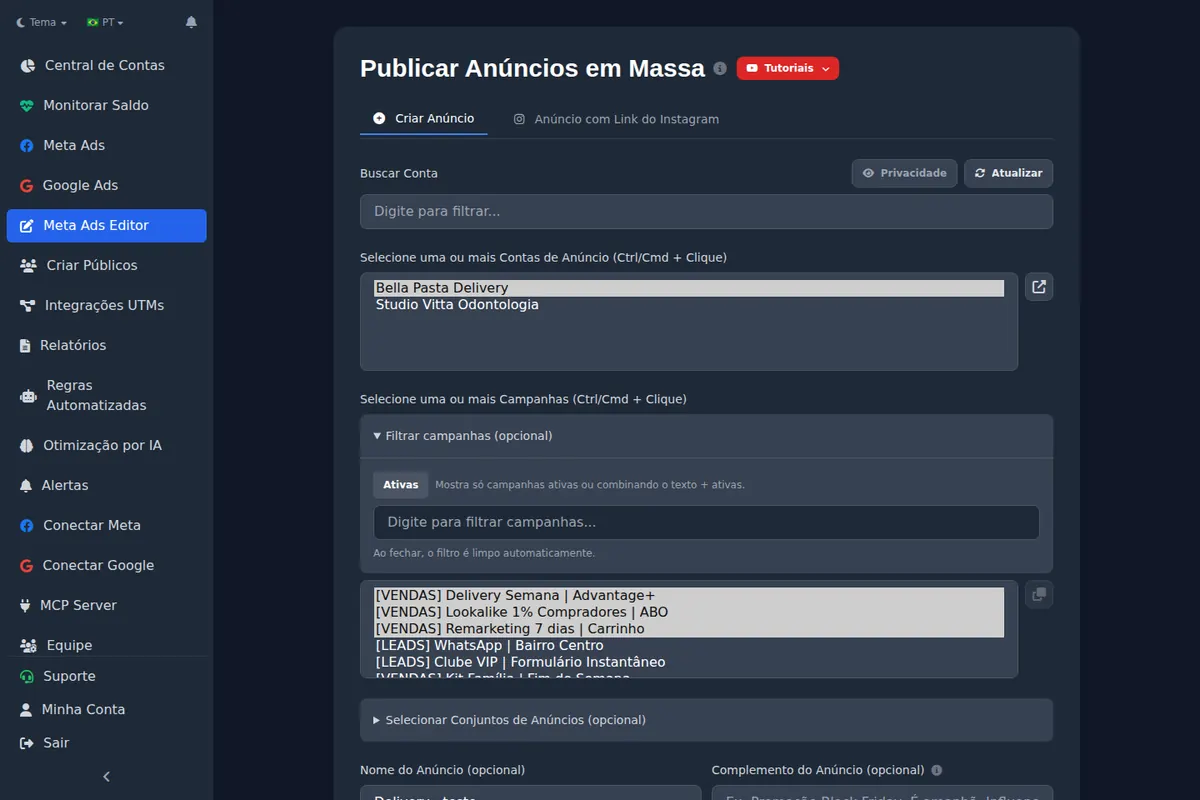
In bulk uploads, the ad link is inherited from the ads already in the ad set, so you usually fill in nothing. An empty ad set has nothing to inherit from. In that case Ads Editor warns you before the upload and replaces Meta's sentence with a direct instruction: fill in the Ad link field for this upload. Guide: required website URL missing.
Error #1487891: invalid creative for objective
The message reads "Invalid creative for objective: The ad's creative is incompatible with the objective of the campaign the ad belongs to." The ad button or destination does not match what the ad set optimizes for. The classic case is an ad with a Learn more button, which is a website button, inside a WhatsApp conversations ad set.
Why is the ad created and then rejected with #1487891?
In WhatsApp ad sets, Meta may accept an ad with a website button at creation and reject it only at delivery. The ad looks created but does not deliver. It also happens when you duplicate a campaign and change the objective: if the old creative is reused without changing the button, it is still a website creative.
How do you fix error #1487891?
- Open the ad and check the ad set destination: website, WhatsApp, Messenger, Instagram Direct, calls or form.
- Switch the button to one that matches that destination. For WhatsApp, the button is Send WhatsApp message.
- If the campaign was duplicated with another objective, rebuild the creative instead of reusing the old one.
- Publish again and check delivery after a few minutes.
In Ads Editor, uploads to a WhatsApp ad set never downgrade the WhatsApp button to Learn more, and a clone that changes the objective builds the creative with the new destination's button. Guide: creative incompatible with the ad set objective.
Error #2446493: the creative does not support multiple message destinations
The message reads "Your ad's creative setup does not support ads that click to multiple message destinations. Please update your creative and try again. Or choose one message destination at ad set level." The ad set sends people to more than one messaging app (Messenger, WhatsApp and Instagram Direct), and the creative lacks the setup Meta requires for that combination.
How do you fix error #2446493?
- In the ad set, check which message destinations are selected.
- In the ad, set one button for each selected destination. Meta's documentation says the creative destinations must match the ad set.
- If WhatsApp is one of the destinations, the WhatsApp Business number must be connected to the Page.
- If you do not need every destination, keep a single one in the ad set, as the message itself suggests.
In Ads Editor, when you duplicate an ad set into a multi-destination messaging campaign, the clone builds that setup with one button per channel. Guide: multi-destination creative missing the required specification.
Error #2142071: the Pages don't match the promoted object
The message says the Page selected for your ad doesn't match the Page associated with the object you are promoting, such as an app or a Page post. The ad set promotes one Page and the ad runs under another. Meta's documentation is direct: if the ad set uses a Page, the creative must promote that same Page.
How do you fix error #2142071?
- Check which Page is set in the ad set (in messaging, leads and Page likes campaigns it lives in the ad set).
- Use that same Page as the ad identity.
- If the ad uses an existing post, the post must belong to that Page.
- When duplicating to another account, make sure the new Page is accessible in the target account.
A sibling error is #1487543, creative Page different from the ad set Page. The fix is the same, and Ads Editor aligns both automatically in most uploads. Guide: creative Page differs from the ad set Page.
Error #1885878: invalid asset count in the target rule
The message says multiple description assets cannot be applied to rule number 1 in the ad's asset feed. It shows up in ads with placement asset customization, where each placement gets its own mix of media and text. Meta accepts only one link description in that format, because the description cannot be customized per placement.
How do you fix error #1885878?
- Open the ad and count the filled descriptions.
- Keep a single description and delete the others.
- If you need to test several descriptions, remove placement customization and use the flexible format.
Ads Editor has no special handling for this code: if it appears in an upload through Ads Editor, the fix is the same, directly in the creative.
Connection and limit errors: 190, 17 and 613
Code 190 means the access token expired, and Meta's guidance is to get a new one. In practice: a changed Facebook password, a removed app or an old session. The fix is to reconnect the Facebook profile in the tool that failed; in Ads Editor, under Connect Meta. Guide: invalid or expired Meta token.
Code 17 is a call limit: Meta temporarily holds changes and recommends waiting and retrying. Code 613 shows up, for example, when the same item is paused and activated several times in a short period. Ads Editor retries on its own after 30 seconds, only for the rejected item. Guide: Meta temporary limit (#613).
How do you avoid Meta Ads errors when publishing in bulk?
- Publish one paused test ad before the batch. If it passes, the others with the same setup pass.
- Check the Page, Instagram account and ad set destination before copying between accounts: they cause #1815199, #2142071 and #1487891.
- In an empty ad set, fill in the ad link on the first upload.
- Keep the error code and the ad ID. They are what Meta, or any support team, will ask for.
To publish across accounts without repeating the same error ad by ad, see how to bulk upload Facebook ads and how to copy a Facebook campaign to another ad account. The full topic is in how to manage multiple Facebook ad accounts.
Step by step in Ads Editor
Help Center articles that walk through this task screen by screen:
Frequently asked questions
What does the number in parentheses mean in a Meta Ads error?
It is the error subcode, which identifies the cause. The sentence changes with the account language; the number is the same in any language.
How do I fix error #1487891 invalid creative for objective?
Switch the ad button to one that matches the ad set destination, such as Send WhatsApp message in a WhatsApp ad set, or rebuild the creative if the campaign changed objective.
How do I fix error #2446493 multiple message destinations?
Set one button per destination selected in the ad set and connect the WhatsApp Business number to the Page, or keep a single destination in the ad set.
How do I fix error #1815199 in Meta Ads?
Assign the ad account to the Instagram account in the business portfolio settings, or publish using the Page as the Instagram identity.
Glossary
- Error subcode
- Number Meta returns with the main code to identify the exact cause of a rejection.
- Business portfolio
- Current name of Meta Business Manager, where a company's Pages, Instagram accounts and ad accounts live.
- Ad identity
- The Facebook Page and Instagram profile shown as the authors of the ad.
- Placement asset customization
- Feature that shows different media and text depending on the placement, such as Stories or Feed.
References
- Marketing API error codes (Meta for Developers), accessed Oct 31, 2026. Supports: Code and subcode structure, the guidance to handle errors by code, and 1815199 described as an ad account without access to the Instagram account.
- Handle Errors, Graph API (Meta for Developers), accessed Oct 31, 2026. Supports: The error_subcode and error_user_msg fields (in the request language), code 190 (get a new token) and code 17 (temporary throttling, wait and retry).
- Set Up Instagram Accounts On Business Manager (Meta for Developers), accessed Oct 31, 2026. Supports: Assigning an ad account to an Instagram account, the admin role requirement and the restriction on assigning one business's ad account to another business's Instagram account.
- Ad Creative Link Data (Meta for Developers), accessed Oct 31, 2026. Supports: The ad link must match the button link and is required for carousels.
- Ads that Click to WhatsApp (Meta for Developers), accessed Oct 31, 2026. Supports: The click to WhatsApp button type is WHATSAPP_MESSAGE.
- Ads that Click to Multidestination (Meta for Developers), accessed Oct 31, 2026. Supports: Creative destinations must match the ad set destination_type, and the WhatsApp Business number must be connected to the Page.
- Ad Set, Promoted Object (Meta for Developers), accessed Oct 31, 2026. Supports: If the ad set uses page_id, the creative must promote that same Page.
- Placement Asset Customization (Meta for Developers), accessed Oct 31, 2026. Supports: Only one link description is accepted, because the description cannot be customized per placement.
The claim supported by each source is shown above.
About the author
Matheus Mello, founder of Ads Editor and owner of YEP Agência. Runs client ad accounts at YEP Agência and built Ads Editor so his own agency could stop publishing ads one at a time. Usage numbers quoted on the blog come from the product activity log. Instagram: @theusm