Meta Ads bulk upload template (XLSX): columns, IDs and import errors
By Matheus Mello, founder of Ads Editor and owner of YEP Agência · Published · 9 min read
The Meta Ads bulk upload template is the Excel file that Ads Manager reads when you use Import ads in bulk. Most failed imports come from three things: a renamed column, an ID in the wrong place or a media file the sheet cannot find. This guide walks through the template column by column, using Meta's own Help Center pages read on November 25, 2026.
Try bulk publishingQuick answer
Meta's bulk upload template is the Excel file behind Import ads in bulk. Export an existing campaign or download the blank template, keep every column, leave IDs blank to create and fill them to update, point media to an Image Hash or video ID, stay near 2 MB, then import and fix each flagged row.
Summary
- Get the file two ways: Download Excel template for new ads, or export existing ads and edit them. The template has fewer columns than an export.
- The ID columns decide what happens: blank creates a new campaign, ad set or ad; a filled ID updates that object.
- Images go in by Image Hash (already in the account) or by exact file name in the Image column (new upload).
- Meta lists a file limit of about 2 MB, and the file goes into the ad account that is open, one account per import.
- After the import, Meta shows warnings and blocking errors; View errors in Excel says what to fix in each row.
In this article · 8 sections
Where do you get the Meta Ads bulk upload template?
- Blank template. In Ads Manager, at the top of the Campaigns, Ad sets or Ads tab, open the import and export menu (or More) and click Download Excel template.
- Export instead. Select a campaign, ad set or ads that already work and export them. You get a sheet with every column that object uses, already filled in.
- Edit and save. Change the rows in Excel and save the file to your computer.
- Import. Back in Ads Manager, open More, choose Import ads in bulk and upload the file (or paste the text). This step also lets you attach images and videos.
Meta warns that the template has fewer columns than an export, because new ads have not run yet, and that spreadsheet column names do not match the field names you see in Ads Manager. That is why starting from an export of a campaign that already published is the safer route: it brings the exact columns and values the account accepts.
Which columns does the template have?
| Level | Main columns | What to watch |
|---|---|---|
| Campaign | Campaign ID, Campaign Name, Campaign Objective, Buying Type, Campaign Spend Limit, Campaign Status, Tags | Campaign ID blank creates a new campaign |
| Ad set | Ad Set ID, Ad Set Name, Ad Set Status, Ad Set Daily Budget or Lifetime Budget, Ad Set Time Start, Optimization Goal, Billing Event, Bid Amount, Countries, Age Min and Max, Custom Audiences, Link Object ID | Budget sits at ad set level in the sheet; copy the format from an export |
| Ad | Ad ID, Ad Name, Ad Status, Body, Title, Link, Link Description, Display Link, Image, Image Hash, Creative Type, Story ID, URL Tags | Story ID must stay blank when you supply your own text and media |
Two columns cause most of the surprises. Link Object ID is the Facebook Page, written as o: followed by the Page ID. URL Tags is where your UTM parameters go; leave it empty and the ads from that import arrive without tracking (see UTM parameters for Facebook ads).
Do blank IDs create and filled IDs update?
Yes. Meta's troubleshooting pages say it from both sides: when you import new ads with the template, delete the ad IDs; when you import updates to existing ads, do not delete them, because you are editing ads and not creating new ones. The same logic holds for the campaign and ad set ID columns.
| You want to | Campaign ID | Ad Set ID | Ad ID |
|---|---|---|---|
| Create a whole new campaign | Blank | Blank | Blank |
| Add new ads to an ad set that exists | Filled | Filled | Blank |
| Edit ads that already exist (text, link, status) | Filled | Filled | Filled |
The classic mistake
You export a campaign to reuse it, change the copy and import it again. With the IDs still filled, Meta updates the original ads instead of creating new ones. To duplicate, clear the IDs of everything you want created.
How do images and videos go into the sheet?
| In Ads Manager | In the spreadsheet | Format |
|---|---|---|
| Image already uploaded to the account | Image Hash | The 32 character hash, or 123456789:hash with the ad account ID that stores the image |
| New image | Image | The exact file name of the image you attach with the spreadsheet |
| Video (video views objective) | Mobile App Video, in Meta's mapping | v: followed by the video ID |
| Facebook Page | Link Object ID | o: followed by the Page ID |
| Text, headline, website URL | Body, Title, Link | Plain text |
| Call to action | Call to Action | Codes such as LEARN_MORE, SHOP_NOW, SIGN_UP, DOWNLOAD |
For new files, the name in the Image column has to match the attached file exactly: a file renamed after you filled the sheet breaks the link. Meta's import step lets you attach images and videos alongside the spreadsheet. Ads Uploader's template guide adds that a single zip with every referenced file name also works; Meta's pages we read do not mention zip files, so test it with one row first.
How do you set each ad as active or paused?
Each level has its own status column: Campaign Status, Ad Set Status and Ad Status, one value per row. Ads Uploader's guide lists ACTIVE or PAUSED at ad level; the Meta pages we read name the columns but do not list the values, so copy the exact value from an export of your own account. On a client's first import, set everything paused and review a few ads in Ads Manager before turning them on.
How big can the file be?
Meta's bulk import page lists a file limit of about 2 MB. Heavy text rows, many variations and creative customizations fill it faster than people expect. When you hit it, split the batch, for example one file per campaign, and import them one after another.
The file also goes into the ad account that is open when you import. Three clients mean three files and three imports, each with its own Page, pixel and audience IDs.
How do you read and fix import errors?
After the upload, Ads Manager shows a summary of what was imported, with warnings and blocking errors. Warnings let the row through; blocking errors stop it. Click View errors in Excel to get the file back with the reason on each row. These are the fixes Meta lists:
| Symptom | Likely cause | Fix |
|---|---|---|
| New ads will not import from the template | Ad IDs left in the sheet | Delete every ad ID in the rows you want to create |
| Columns ignored or rejected | A column was deleted or renamed | Compare with a freshly downloaded template; every original column must be there |
| The file still fails | Encoding or format | Save the sheet as a Unicode .txt file and import that |
| Updates to existing ads fail | IDs were deleted | Keep the ad IDs: you are editing, not creating |
| Rows with an issue code after export | Unsupported feature in the ad | Delete those rows before importing, or let Meta skip them |
| Partnership ads lose the partner | Branded content is partially supported | Rebuild those ads in Ads Manager or in a tool that keeps the partner |
Meta also lists what export and import cannot carry: A/B tests and offers are removed, ads with more than 10 languages keep only the first 10, extra text options are dropped, and carousel ads with customized placements turn into drafts with errors that cannot be published. If a campaign uses any of those, the sheet is the wrong tool for it.
When does the template stop being worth it?
- One file per account. The same creative pack for ten clients is ten files, each with its own Page and audience IDs.
- Copy repeated in every row. Text, link and UTMs are typed once per row, so one mistake is copied into every ad.
- Media matched by name. Every renamed file is a broken row.
- Unsupported features. Partnership ads, A/B tests and customized carousels do not survive the trip.
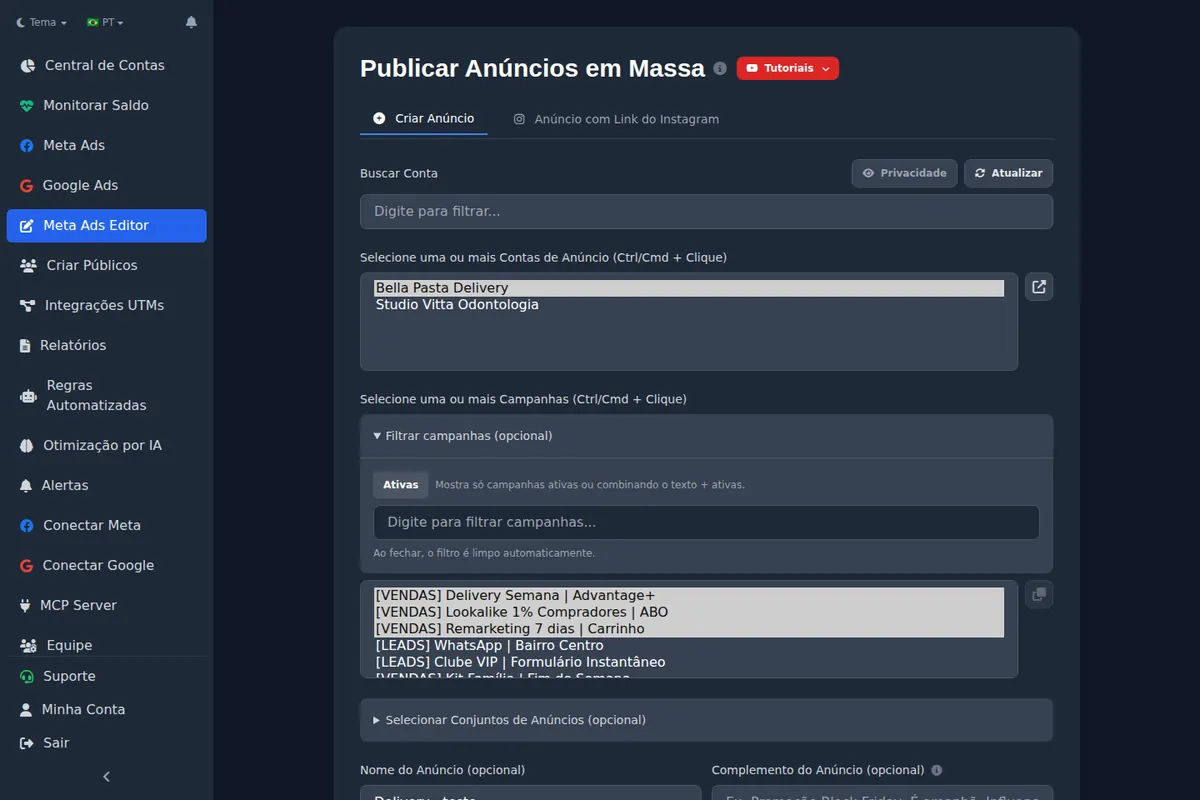
For a monthly batch in one account, the template is free and fine. When the same batch has to reach several client accounts every week, a launch queue does the same job without the sheet: Ads Editor lets you pick the accounts, campaigns and ad sets, drop the creatives and write copy, URL and UTMs once, then publishes into all of them and shows each item's status. The full walk-through is in how to bulk upload Facebook ads, and the tool comparison is in best bulk ad launch tools for Meta.
Frequently asked questions
Where is the Meta Ads bulk upload template?
In Ads Manager, open the import and export menu (or More) above the Campaigns, Ad sets or Ads tab and click Download Excel template. You can also export existing ads and edit that file.
Does a blank ID create a new ad in Meta's bulk import?
Yes. A blank Ad ID creates a new ad, and a filled one updates the existing ad. Meta's troubleshooting pages say to delete the ad IDs for new ads and to keep them for updates.
What is the file size limit for Meta's bulk import?
Meta lists a limit of about 2 MB per file. For larger batches, split the work into several files, for example one per campaign.
How do I reference an image that is already in the ad account?
Put its hash in the Image Hash column, either the 32 character hash alone or the ad account ID, a colon and the hash. New images go by exact file name in the Image column.
Can the bulk import template publish to several ad accounts?
No. Each import goes into the ad account that is open, so several clients need several files. A launch queue such as Ads Editor publishes the same batch into several accounts at once.
Glossary
- Image Hash
- The identifier Meta gives an image stored in an ad account, used to reuse it in new ads without uploading it again.
- Link Object ID
- The spreadsheet column for the Facebook Page that runs the ad, written as o: followed by the Page ID.
- Story ID
- The column for an existing Page post. When it is filled, Meta uses that post and ignores the text and media in the row.
- Blocking error
- An import problem that stops a row from being imported, as opposed to a warning, which lets it through.
References
- How to bulk upload and import ads in Meta Ads Manager (Meta Business Help Center). Supports: Bulk import uploads an Excel spreadsheet with campaign, ad set and ad information, from a downloaded template or an export; the page lists a file limit of about 2 MB.
- Download the import template for Meta Ads Manager (Meta Business Help Center). Supports: Download Excel template from the Ads, Ad sets or Campaigns tabs; the template has fewer columns than an export and its columns do not fully match Ads Manager.
- Import ads to Meta Ads Manager (Meta Business Help Center). Supports: More, Import ads in bulk; paste text or upload an Excel file, optionally with images and videos; summary with warnings and blocking errors; View errors in Excel; desktop only.
- Columns in the import/export template in Ads Manager (Meta Business Help Center). Supports: The list of campaign, ad set and ad level columns, including the ID, status, Image, Image Hash, Story ID and URL Tags columns.
- Differences between Ads Manager field names and spreadsheet column names (Meta Business Help Center). Supports: Mapping of fields to columns: Link Object ID as o: plus Page ID, Image Hash formats, Image column by exact file name, video as v: plus video ID, call to action codes, and Story ID left blank.
- Troubleshoot bulk import issues when using an Excel template (Meta Business Help Center). Supports: Delete all ad IDs, keep every original column, and save as a Unicode .txt file when importing new ads fails.
- Troubleshoot issues when bulk importing updates to existing ads (Meta Business Help Center). Supports: For updates, keep all columns and do not delete the ad IDs, since you are editing ads and not creating new ones.
- Exporting and importing ads with unsupported features (Meta Business Help Center). Supports: Issue code columns; A/B tests, offers and branded content partner Pages removed; 10 language and 10 text option caps; carousel with customized placements becomes drafts with errors.
- Facebook Ads Bulk Upload: The XLSX Template (Ads Uploader). Supports: A vendor guide, updated September 30, 2026: media can be uploaded as loose files or one zip, and Ad Status takes ACTIVE or PAUSED at ad level.
The claim supported by each source is shown above.
About the author
Matheus Mello, founder of Ads Editor and owner of YEP Agência. Runs client ad accounts at YEP Agência and built Ads Editor so his own agency could stop publishing ads one at a time. Usage numbers quoted on the blog come from the product activity log. Instagram: @theusm