Merchant Center in Performance Max: how to link your feed and advertise products
By Matheus Mello, founder of Ads Editor and owner of YEP Agência · Published · 7 min read
Merchant Center in Performance Max is what turns PMax into a product campaign: with the catalog attached, it advertises the items in your feed on Shopping and across Google's other channels. Without it, PMax runs only on the headlines, images and videos in the asset group.
Quick answer
To use Merchant Center in Performance Max, first link Merchant Center to Google Ads: the request starts in Merchant Center and a Google Ads admin approves it. Then pick the Merchant Center account on the campaign. With no feed label, PMax uses all products; with a label, only that feed's products. Check the listing groups.
Summary
- Retail PMax requires the Google Ads account to be linked to a Merchant Center account; the Merchant Center ID is required on the campaign.
- The link starts in Merchant Center (Settings, Access and services, Apps and services) and is approved in Google Ads by an admin.
- Without a feed label, the campaign uses every feed in Merchant Center; with one, only that feed's products.
- Every asset group needs a listing group tree; a single node with all products is enough. Without one, nothing serves.
- Ads Editor attaches Merchant Center when creating PMax and when editing an existing one, with all products in the feed.
What changes in Performance Max with Merchant Center attached?
PMax stops advertising just the message and starts advertising products: the photo, price and name of each item in the feed, on Shopping and across Google's other channels. What the Google Ads API documentation says about retail PMax, checked October 17, 2026:
- To use Performance Max for retail, the Google Ads account must be linked to an existing Merchant Center account.
- The Merchant Center ID is required: it is the account that holds the products to advertise.
- The feed label selects products from a specific feed. Without it, the campaign uses all available Merchant Center feeds.
- Every asset group needs a valid listing group tree. A single-node tree that includes all products meets the requirement, and ads won't serve without a valid tree.
The rest of the asset group still applies: headlines, images, logo and videos. The minimums are in Performance Max asset groups.
How do you link Merchant Center to Google Ads?
The link is the step that stalls most often, because it involves two accounts and usually two people: the store owner, who runs Merchant Center, and the agency, which runs Google Ads. Per Google Merchant Center Help, checked October 17, 2026:
- In Merchant Center, someone with admin access opens Settings, then Access and services, then Apps and services.
- They click Add service, choose Google Ads, select the account and finish with Link. Only a Merchant Center admin can start the request.
- In Google Ads, an account admin opens Tools, then Data manager, finds Google Merchant Center under connected products and selects Manage & link.
- On the Received tab, the request shows as needing approval. Review and approve it to finish. Only a Google Ads admin can approve.
Standard access cannot approve
If the person approving in Google Ads is not an account admin, the request just sits there. Ask the client for admin access, or ask them to approve it, before you set a launch date.
What is a feed label, and when should you use one?
A feed label is the tag that separates feeds inside one Merchant Center account, for example a US feed and a CA feed for a store that sells in both countries. In PMax it decides which products go in:
| Feed label on PMax | Products the campaign uses | When to choose it |
|---|---|---|
| Empty | Every feed in Merchant Center | A store with one feed, or a campaign that should advertise everything |
| Set (e.g. US) | Only that feed's products | Stores with feeds by country, language or brand |
A label that does not exist in Merchant Center leaves the campaign with no products. Copy the label from Merchant Center instead of typing it from memory.
How do you attach Merchant Center to PMax in Ads Editor?
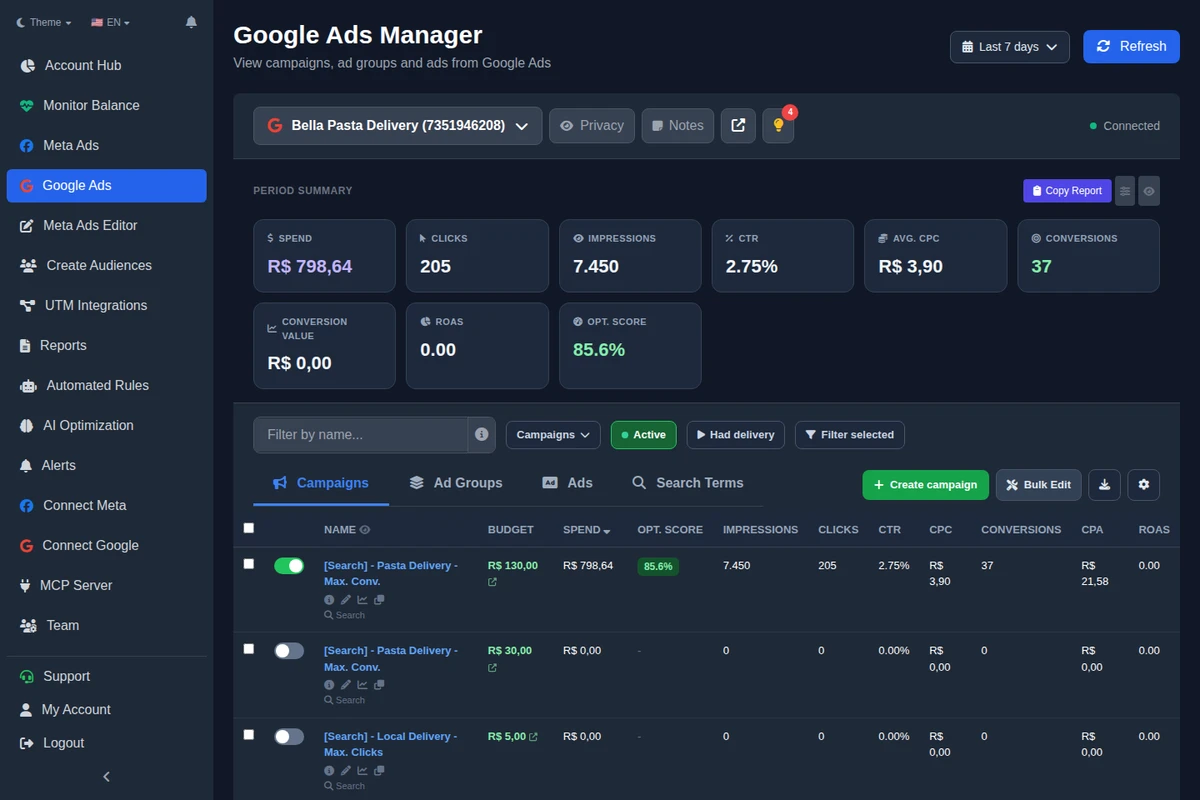
Since October 13, 2026, Ads Editor's Google manager attaches Merchant Center to PMax, both when creating a campaign and on a PMax that already exists.
- New PMax: in Ads Editor's Google Ads manager, click the green Create campaign button and choose Performance Max.
- On the search themes step, a Merchant Center / Google Shopping block appears. Pick the Merchant Center account linked to the Google Ads account; if there is only one, it is preselected. No product catalog creates PMax without products, as before.
- Feed label (optional): fill it in only if your feed has a label. Empty uses every product in Merchant Center.
- Existing PMax: open Edit asset group on the campaign. The same block is there; pick the Merchant Center account, the label if any, and save.
- The campaign goes live with all products in the feed: every asset group that had no products gets all of them. Narrowing by brand, category or product is done afterwards in Google Ads.
If Merchant Center is not linked to the account, Ads Editor refuses before creating or saving and shows any pending link requests. It does not create the link for you: that still happens in Merchant Center and Google Ads. From an AI chat, the Ads Editor MCP lists the account's Merchant Center accounts and attaches one to an existing PMax.
Google Ads or Ads Editor: who does what with Merchant Center?
| Task | Google Ads | Ads Editor |
|---|---|---|
| Link Merchant Center and Google Ads | Yes: request in Merchant Center, approval in Google Ads | Does not link; shows linked and pending accounts |
| Pick Merchant Center on a new PMax | Yes | Yes, in Create campaign |
| Feed label | Yes | Yes, optional |
| Attach Merchant Center to an existing PMax | Yes | Yes, in Edit asset group |
| Filter products by brand or category | Yes, in listing groups | Goes in with all products; filter in Google Ads |
| From an AI chat | Google's official MCP is read-only | The MCP lists Merchant Center accounts and attaches one to an existing PMax |
Why isn't Performance Max showing my products?
- The link was never approved. The request left Merchant Center and is waiting on the Received tab in Google Ads.
- An asset group has no listing group tree. Without a valid tree, Google's documentation says ads won't serve.
- Wrong feed label. The campaign's label matches no feed in Merchant Center.
- Products disapproved in Merchant Center. The campaign only advertises what Merchant Center approved; check feed issues there.
For the weekly routine across many Google Ads accounts, with bidding, negatives and PMax, see how to manage Google Ads for multiple clients.
Frequently asked questions
Do I need Merchant Center to run Performance Max?
No. Without Merchant Center, PMax runs on the asset group's creative, without products. To advertise catalog products, the account must be linked to Merchant Center.
Who approves the link between Merchant Center and Google Ads?
A Merchant Center admin starts the request, and a Google Ads account admin approves it on the Received tab under Data manager.
What happens if I leave the feed label empty?
Performance Max uses products from every feed in Merchant Center. Set a label only to limit the campaign to one feed.
Can Performance Max advertise only some products?
Yes, through the listing groups in each asset group, in Google Ads. Ads Editor attaches the catalog with all products, and you narrow it afterwards.
Does Ads Editor link Merchant Center to Google Ads?
No. The link is created in Merchant Center and approved in Google Ads. Ads Editor shows the linked accounts and attaches the one you pick to PMax.
Glossary
- Merchant Center
- The Google account where a store lists the products (the feed) that can appear in ads and on Shopping.
- Feed label
- A tag that separates feeds inside one Merchant Center account; on PMax, it limits products to one feed.
- Listing group
- A slice of the catalog inside a PMax asset group; a single node with all products is valid.
- Retail Performance Max
- A PMax campaign linked to Merchant Center that advertises the products in the feed.
References
- Link a Google Ads account to Merchant Center, Google Merchant Center Help (checked October 17, 2026). Supports: Only a Merchant Center admin can start a link request; in Google Ads, the request is approved under Data manager, on the Received tab, and only an account admin can approve it.
- Performance Max for retail, Google Ads API (checked October 17, 2026). Supports: The Google Ads account must be linked to an existing Merchant Center account; merchant_id is required; feed_label selects products from a specific feed and, without it, the campaign uses all feeds.
- Performance Max listing groups, Google Ads API (checked October 17, 2026). Supports: Every asset group needs a valid listing group tree; a single-node tree with all products meets the requirement; ads won't serve until a valid tree exists.
The claim supported by each source is shown above.
About the author
Matheus Mello, founder of Ads Editor and owner of YEP Agência. Runs client ad accounts at YEP Agência and built Ads Editor so his own agency could stop publishing ads one at a time. Usage numbers quoted on the blog come from the product activity log. Instagram: @theusm