How to use one creative in Feed and another in Stories and Reels in the same Meta ad
By Matheus Mello, founder of Ads Editor and owner of YEP Agência · Published · 6 min read
Using a different creative for Feed and Stories in Meta Ads is what lets a single ad show the square or 4:5 piece in the Feed and the 9:16 vertical in Stories and Reels. Without it, you either crop the vertical in the Feed, live with bars in Stories, or build two ads and split the learning. Here is how to do it in Ads Manager, in bulk, and what goes wrong.
Try bulk publishingQuick answer
In Ads Manager, build the ad with the Feed media and use the option to edit media by placement to pick the vertical version for Stories and Reels. It stays one ad with two media files. In the Meta Ads Editor, turn on Customize by placement and pick the vertical versions under Media for stories and reels.
Summary
- One ad can carry one media file for the Feed and another for Stories and Reels: Meta calls it placement asset customization.
- Have both versions of each piece: 1:1 or 4:5 for the Feed, 9:16 for Stories and Reels.
- This format takes a single description, and the ad needs at least two placement rules.
- In the Meta Ads Editor, media pair up by order: Feed 1 with Stories 1, 2 with 2.
- Customize by placement does not work with carousels or text variations.
In this article · 5 sections
Why use different media in Feed and Stories?
Feed and Stories have different shapes. A 9:16 vertical fills the screen in Stories and Reels, but gets cropped in the Feed. A 4:5 piece works in the Feed, but leaves empty space above and below in Stories. With placement customization, each placement gets the version built for it inside the same ad: one set of results, one learning phase, one row in the report.
Which aspect ratio goes in each placement?
| Placement | Aspect ratio | Note |
|---|---|---|
| Facebook Feed | 4:5 | Meta's Ads Guide lists 1440 x 1800 px; 1:1 also runs |
| Instagram Feed | 4:5 | The Ads Guide lists 1440 x 1800 px; 1:1 also runs, with less height on a phone screen |
| Stories and Reels | 9:16 | The Ads Guide lists 1440 x 2560 px for Instagram Stories; Meta shows 9:16 images full screen |
How to do it in Meta Ads Manager
- At ad level, choose the single image or video format and select the Feed media.
- With the media selected, use the option to edit media by placement. Menu names change often; look for the placement list next to the media.
- Select Stories and Reels and replace the media for those placements with the 9:16 version.
- Check the preview: the Feed with the 4:5 piece and Stories with the vertical one.
- Fill in a single description. Meta does not accept several in this format.
- Publish.
For one ad it is quick. For 20 pieces across three ad sets, it is the same sequence 60 times. And if the ad set uses Advantage+ placements and you want to remove some, that is set at ad set level: see how to turn off Advantage+ audience in bulk. In Ads Editor, since November 18, 2026, the ad set placement editor checks a whole platform (all of Instagram, for example) in one click.
How to do it in bulk in the Meta Ads Editor
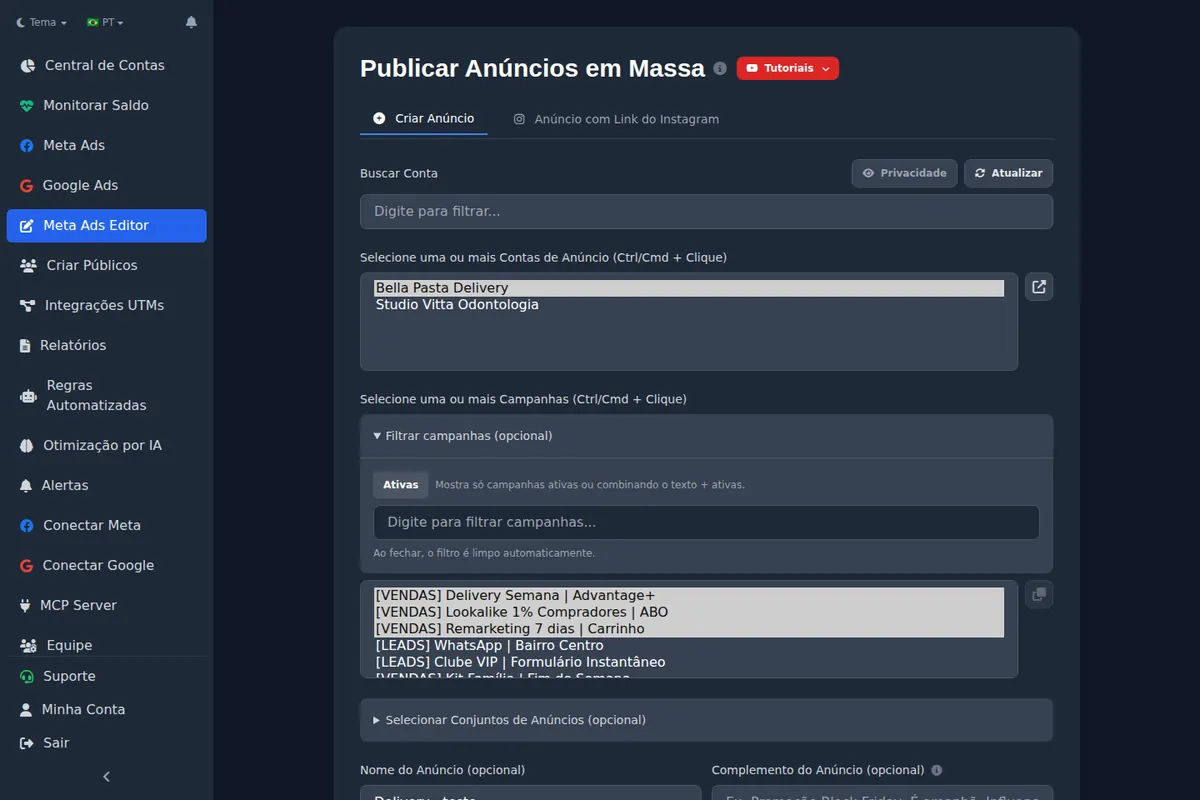
- In the Meta Ads Editor, pick the account and campaigns and, under Creatives, select the Feed pieces.
- Below the file list, turn on Customize by placement. The Media for stories and reels field shows up.
- Under Media for stories and reels, select the 9:16 versions in the same number and the same order as the Feed ones.
- Click Create Ads. Each ad goes out with the Feed media in feed placements and the vertical one in stories and reels.
From Google Drive too
When importing from Google Drive with placement on, choose Stories and reels under Import into and the files go straight to the second field. Number the pieces (01, 02, 03) in both folders so the order matches.
Ads Editor does not crop or resize media: it uses the files you pick. Both versions of each piece have to exist before the upload.
What goes wrong with media by placement
| Symptom | Cause | What to do |
|---|---|---|
| The upload asks for the same number | Creatives and Media for stories and reels have different file counts | Keep the same number in both fields |
| The Stories piece got paired with the wrong Feed one | The file order did not match | Pick again in the same order, or number the files |
| The carousel cannot be turned on | Carousel and placement customization do not go together | Turn one of them off |
| Error #1885878: multiple descriptions assets can not be applied to rule #1 | More than one description in the ad | Keep one description. Details in error #1885878 |
| Error #2446428: insufficient number of target rules, placement customized ads require at least 2 target rules | The ad ended up with a single placement rule | Set media for at least two placement groups, such as Feed and Stories |
To turn published Stories into ads, see how to use an Instagram Story as an ad. If the goal is testing copy rather than formats, use the flexible ad format, because placement customization goes out with a single text.
Frequently asked questions
Can one ad use different media in Feed and Stories?
Yes. It is placement asset customization: the ad carries the 1:1 or 4:5 piece for the Feed and the 9:16 piece for Stories and Reels, with one set of results and one learning phase.
What aspect ratio should Stories and Reels use?
9:16, vertical, full screen. For the Facebook and Instagram Feeds, Meta's Ads Guide lists 4:5; 1:1 also runs.
Does Ads Editor crop the vertical version from the square one?
No. It uses the files you pick. Have both versions of each piece before uploading and pick the verticals in the same order as the Feed ones.
Can I use several texts with media by placement?
Not in the same ad. In the Meta Ads Editor the ad goes out with a single text, and Meta accepts only one description in this format. To test copy, use the flexible format.
Does it work with carousels?
No. Carousel and placement customization do not go together in the Meta Ads Editor: turn on one or the other.
Glossary
- Placement asset customization
- Meta's feature that shows different media depending on the placement, within the same ad.
- Placement
- Where the ad appears, such as Facebook Feed, Instagram Feed, Stories or Reels.
- 9:16 aspect ratio
- Full screen vertical format, used in Stories and Reels.
References
- Placement Asset Customization (Meta for Developers), checked November 23, 2026. Supports: Media customization by placement, the requirement for more than one rule, and a single link description because it cannot be customized per placement.
- Meta Ads Guide: Facebook Feed image, checked November 23, 2026. Supports: 4:5 aspect ratio and 1440 x 1800 px resolution for Facebook Feed images.
- Meta Ads Guide: Instagram Feed image, checked November 23, 2026. Supports: 4:5 aspect ratio and 1440 x 1800 px resolution for Instagram Feed images.
- Meta Ads Guide: Instagram Stories image, checked November 23, 2026. Supports: 9:16 aspect ratio and 1440 x 2560 px resolution for Instagram Stories images.
- Multi-ratio images, Advantage+ catalog ads (Meta for Developers), checked November 23, 2026. Supports: 9:16 images can be displayed full screen in Stories and Reels.
- Ads Editor Help Center: different media for feed and stories. Supports: Customize by placement, Media for stories and reels, same number and order, no carousel or text variations, and import from Drive.
The claim supported by each source is shown above.
About the author
Matheus Mello, founder of Ads Editor and owner of YEP Agência. Runs client ad accounts at YEP Agência and built Ads Editor so his own agency could stop publishing ads one at a time. Usage numbers quoted on the blog come from the product activity log. Instagram: @theusm